.png)

Instinct sensor, made by Abbott
Support for the MiniMed GoTM system
Select the topic that fits your support needs:
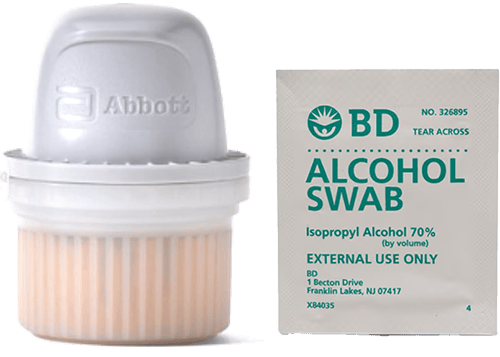
Before you insert your sensor, gather all of your supplies:
- The Instinct sensor is individually packaged and comes in an all-in-one inserter package.
- Alcohol wipes to clean the insertion site.
Know your sensor life
The Instinct sensor lasts up to 15 days.
When 1 day of sensor life remains, a yellow calendar icon  will appear in the top right corner of your MiniMed GoTM app Home screen. When your sensor has expired and needs to be replaced the red calendar icon
  will appear.
You can always see how many days of sensor life remain by by tapping Devices on the Home screen.

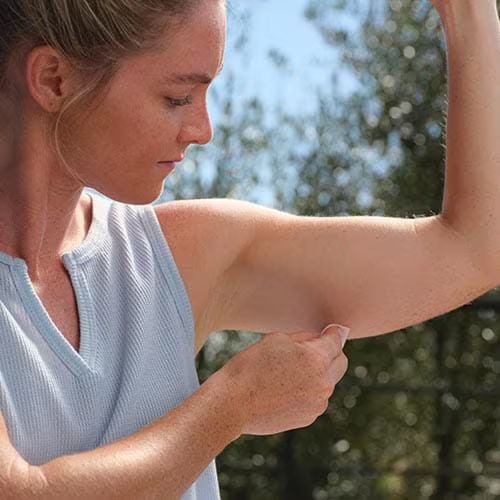
Back of upper arm for ages 2 and older when used with the MiniMed GoTM system
The Instinct sensor is indicated for wear only on the back of the upper arm. Avoid scars, moles, stretch marks, or lumps. Pick a flat site that doesn’t bend and keep at least 1 inch from insulin injection sites.


3. Tap Instinct.
If Instinct is not listed, tap Pair new device, tap Instinct, then tap Continue.


4. Tap Change sensor.
5. Tap Instinct sensor.
6. Tap Next.

1. Prep the skin. Wash with plain soap, dry, clean with alcohol wipe, then let dry.
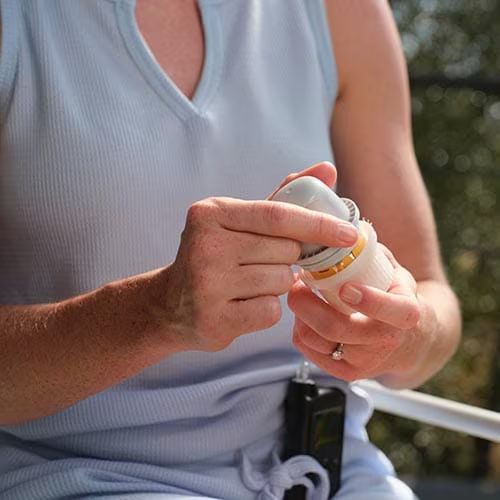
2. Prepare the sensor. Unscrew the cap from the Sensor Applicator.
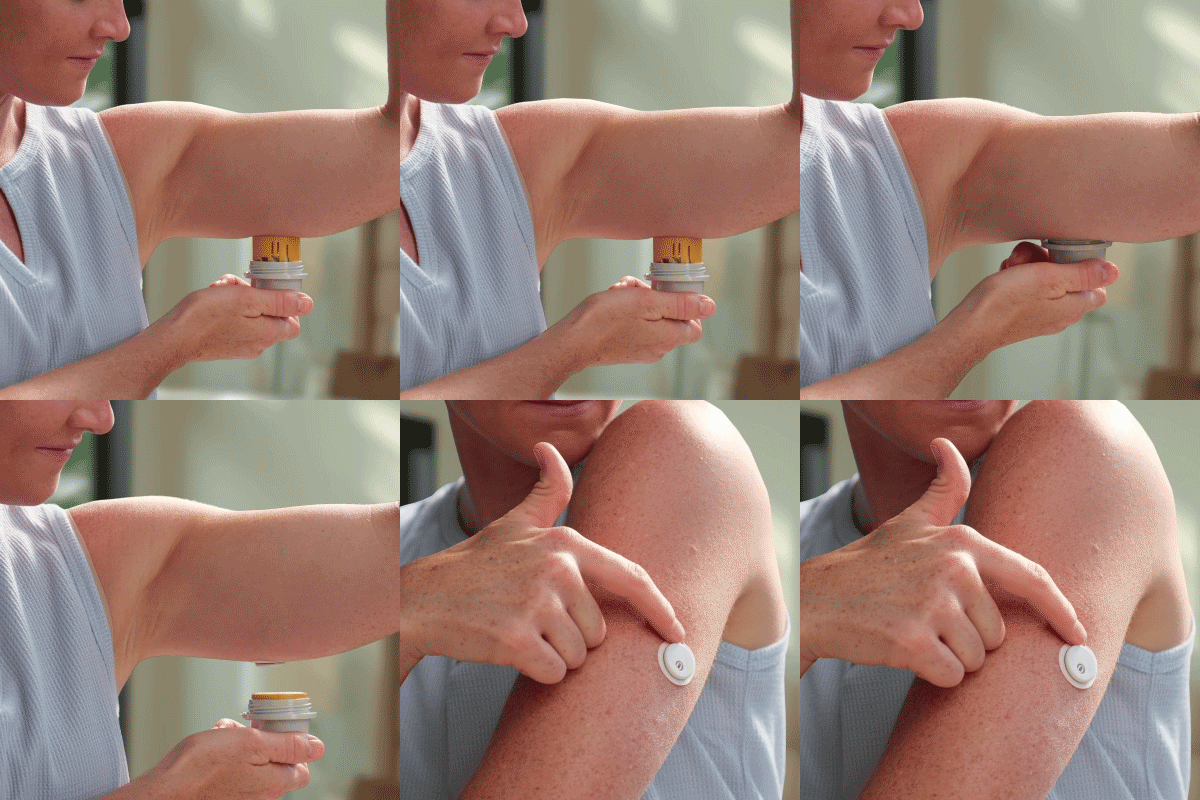
3. Apply the sensor. Push down firmly to apply sensor, then gently pull Sensor applicator away from body. Make sure sensor is secure.

2. When scanning a new sensor, your pump must be on the Home screen with no active alerts or alarms. Next, on your device, tap Scan new sensor. If you are using an iOS device, hold the top of your device near your sensor. If you are using an Android device, hold the back of your device near your sensor.
