.png)


How to get started with MiniMed Go:
A step-by-step guide
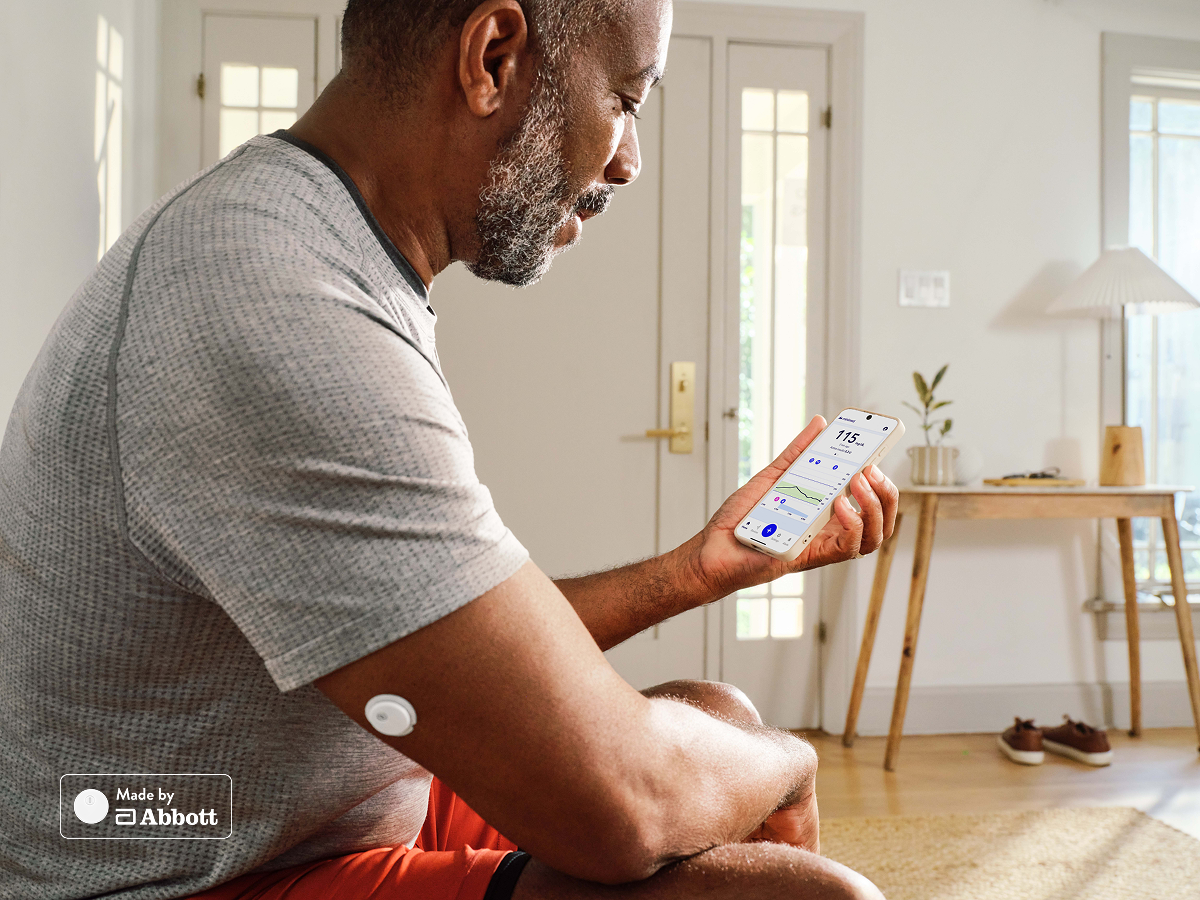
Starting a new diabetes management system can feel like a lot. But MiniMed GoTM is designed to be simple. Whether you're new to InPenTM or an existing user switching from another app, this guide walks you through every step.
Follow the steps below and you'll be ready to go in no time.
Getting started with MiniMed Go involves 4 steps:
- Download the MiniMed Go app and gather your supplies
- Set up the app with your information and therapy settings
- Pair your InPen and CGM sensor to the app
- Set up your alerts and notifications
Most people finish setup in about 15–20 minutes. Full instructions are below.
Before you begin, watch the welcome video
Start here. The MiniMed Go welcome video was made just for new MiniMed Go users. It gives you a quick, friendly look at your new system before you dive in.
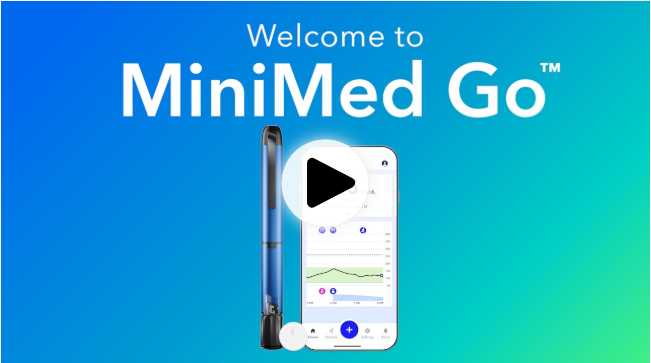
Think of it as a quick tour before your first day. Watch it, then come back here to follow the steps.
Step 1: Download the MiniMed Go app and gather your supplies
Your phone is the control center for MiniMed Go. The first thing to do is download the MiniMed Go app on your compatible device:
- iPhone: Download from the App Store
- Android: Download from Google Play
Gather your supplies
Before you move to the next step, make sure you have everything ready:
- ✅ A compatible smartphone with the MiniMed Go app installed
- ✅ InPen smart insulin pen
- ✅ Compatible CGM sensor (Instinct or Simplera)
- ✅ Insulin pen needles
- ✅ Insulin cartridge
- ✅ Alcohol wipes
- ✅ MiniMed Go System Training Guide
Note: You can set up the app without your InPen or sensor. You can connect them later when you’re ready.
Step 2: Set up the MiniMed Go app
Once the app is open, it will walk you through setup. Here's what you’ll do:
- Create your account — Do you already have a CareLink™ Personal account? Use your username and password to log in to the MiniMed Go app. Don’t have one yet? No problem — the app will create one for you automatically. Your CareLink account lets your doctor and care team safely view your glucose and insulin data.
- Enter your personal information — You’ll add your name, date of birth, and contact details.
- Enter your therapy settings — Your doctor will give you your personal settings. Have these numbers ready before this step.
- Set up your glucose alerts — You’ll set a high alert and a low alert. These alerts tell you when your glucose needs attention. When an alert goes off, act on it right away. Studies show that taking action right away can help keep your glucose in a better range.†1,2
- Review your settings — take your time here to make sure everything looks right before moving forward
🔴 Important: Always set up your therapy settings with your doctor or care team. If you're not sure about any setting, ask before you move on.
Step 3: Connect your devices
Now it's time to connect your InPen and sensor to the app. MiniMed Go uses Bluetooth to do this.
How to connect your InPen to MiniMed Go
- Turn on Bluetooth on your phone
- In the app, go to Devices → Pair New Device
- Select InPen
- Follow the steps on your screen
Switching from the InPen app? If your InPen is still connected to the old InPen app, it may not work correctly with MiniMed Go. To fix this: open the InPen app → Settings → My InPens → select your pen → tap Remove.
How to connect your CGM sensor to MiniMed Go
- Apply your sensor following the instructions in the box
- In the app, go to Devices → Pair New Device
- Select your sensor
- Follow the steps on your screen
- Wait for the sensor to warm up before your first reading comes through.
Note: The Instinct sensor does not need calibration. The Simplera sensor has an optional calibration step.
💡Tip: Keep your phone near your devices while connecting. This helps Bluetooth work better. Having trouble? Visit our Training Resources page.
Step 4: Set up your alerts and personalize your MiniMed Go experience
Once your devices are connected and your sensor is sending data, take a few minutes to personalize your MiniMed Go experience:
- Explore the app — tap through the menus and get familiar with where things are
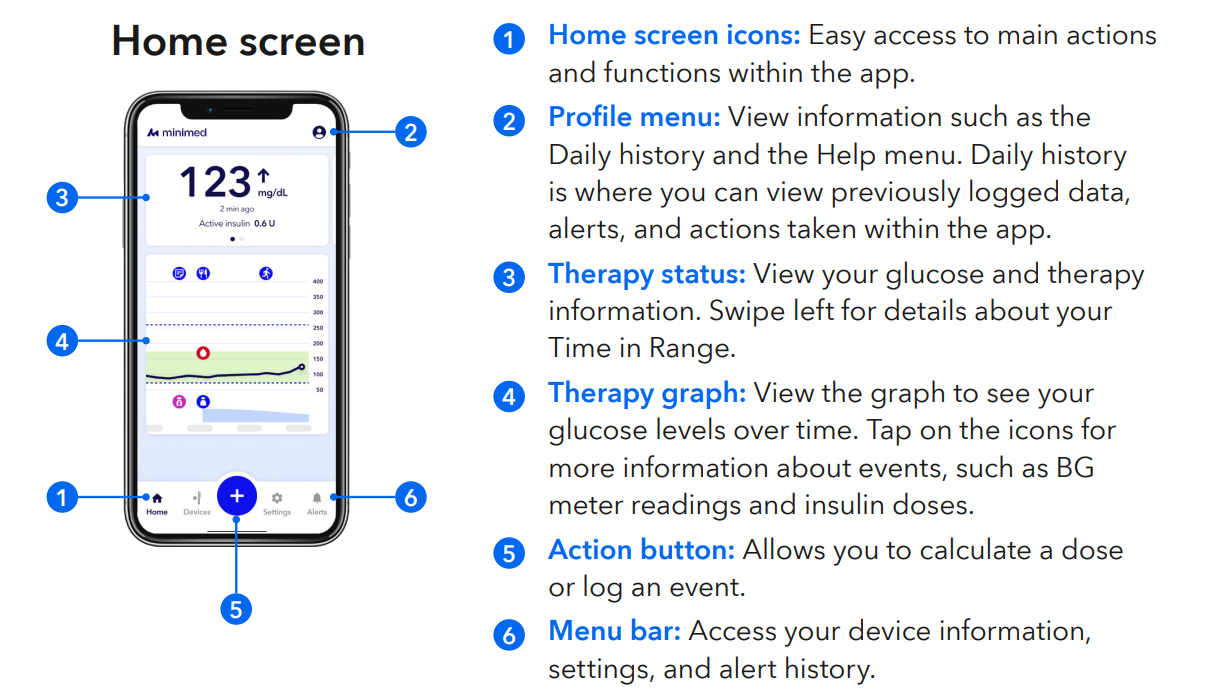
- Set your notifications — choose how and when you want to be alerted
- Log your first event — try logging a meal or activity to get comfortable
You've got this — and we've got you!
Starting a new diabetes management system is a big step. Be proud of yourself for taking it. MiniMed Go is designed to make managing diabetes simpler, your days more flexible, and your life a little easier.
You don't need to figure it all out right away. Take it one step at a time. MiniMed is with you every step of the way.
Helpful resources to bookmark:
- MiniMed Go System Training Guide: a complete guide to your new system, from setup to daily use and troubleshooting
- MiniMed Go Training Resources page: videos, guides, FAQs, and more — all in one place
💡Tip: Save both links on your phone's home screen so they're easy to find when you need them.
Your doctor and diabetes care team are your most important partners. Here are a few things to talk about early on:
- Making sure your settings are correct
- What to do if your glucose goes too high or too low
- What to expect in your first 30 days
- When to schedule a follow-up visit
Recommended: Most people benefit from a follow-up visit within the first 30 days. Ask your doctor if this is right for you.
Need help? Call MiniMed at 1-800-MINIMED or visit your MiniMed Go Training Resources page.
Frequently asked questions about getting started with MiniMed Go


How long does set up take?


How long does set up take?
Most people finish in approximately 15-20 minutes
Do I need a CareLink account to use the MiniMed Go app?
Do I need a CareLink account to use the MiniMed Go app?
Yes. You need a CareLink Personal account to use the app. If you don't have one, the app will create one for you during setup.
Can I share data with my doctor through the MiniMed Go app?
Can I share data with my doctor through the MiniMed Go app?
Yes. If you’re signed into your CareLink account in the MiniMed Go app and sync is turned on, your data will securely sync to the CareLink cloud. Once your healthcare provider is invited, they will automatically see your data through CareLink. Learn more.
Can I set up the MiniMed Go app without my InPen or sensor?
Can I set up the MiniMed Go app without my InPen or sensor?
Yes. You can set up the full app without connecting any devices. You can add them later in the Devices menu.
How long does the CGM sensor warm-up take before readings appear?
How long does the CGM sensor warm-up take before readings appear?
It depends on your sensor. Check the instructions in your sensor box for the exact time.
What if I can't pair my InPen to the MiniMed Go app?
What if I can't pair my InPen to the MiniMed Go app?
First, make sure Bluetooth is on. If you used the InPen app before, make sure you removed your pen from that app first. Visit our Training Resources page for additional pairing troubleshooting steps.
Is the MiniMed Go app available for both iPhone and Android?
Is the MiniMed Go app available for both iPhone and Android?
Yes. The MiniMed Go app is available on both iOS (App Store) and Android (Google Play). Ensure your operating system is up to date before downloading.
† Past performance does not necessarily correlate with future results. There are many factors. Individual results may vary.
1. Laurenzi A, Edd SN, Adolfsson P, et al. Insights into the effective use of the Smart MDI system: Data from the first 1852 type 1 diabetes users. Diabet Med. 2025; 00:e70161. doi:10.1111/dme.70161. Due to inherent real world data limitations, caution is advised when attempting to extrapolate these results to new patients. There could be significant differences.
2. Smith M, et al. Glycemic impact of meal-dosing behaviors in users of the InPen smart insulin pen paired with continuous glucose monitor. ADA Scientific Sessions, 2023, Oral Presentation. (N=5123, r=0.59, P<0.001)
Important safety information: MiniMed Go system
The MiniMed Go system includes the MiniMed Go app, InPen smart insulin pen injector and either the Instinct continuous glucose monitoring (CGM) sensor or Simplera CGM sensor. The system is intended to aid in diabetes management through multiple daily injections of compatible rapid-acting insulins (Humalog, Novolog, or Fiasp). The app and system components each require a prescription. When used with Instinct CGM, the app is indicated for patients ages 7 years and older, or patients ages 2 to 6 years under the supervision of an adult caregiver. When used with Simplera CGM, the app is indicated for patients ages 18 and over. If using InPen alone, the app is intended for all ages, with patients under age 7 requiring supervision. Use of these systems requires, among other things, adequate hearing and vision, a compatible mobile device and operating system, an open app, adequate pairing and connectivity, proper setting, use of an approved rapid-acting insulin, mobile device battery power, proper settings, accurate manual logging of insulin doses administered by means other than InPen, and occasional blood glucose meter (BGM) readings. Establishment of settings and treatment decisions should be made in consultation with a healthcare professional and on the basis of a combination of glucose readings, trend arrows, glucose target, active alerts, and recent events (such as insulin doses, exercise, meals, and medications). Failure to observe these and other details as found in the user guides can result in incorrect dosing, missed alerts and notifications, and ultimately hypoglycemia or hyperglycemia, with serious injury or death possible. For additional safety information and user guides, see https://link.minimed.com/Risks.
©2026 Medtronic MiniMed. MiniMed and MiniMed logo are trademarks of Medtronic MiniMed, Inc. The sensor shape and appearance, Abbott, and “a” logo, are marks and/or designs of the Abbott group of companies in various territories and used under license. Sensor image © 2026 Abbott. ™* Third–party brands are trademarks of their respective owners. All other brands are trademarks of a MiniMed company.