.png)



TechBytes
Hi, I’m Ali Dianaty, Chief Product & Technology Officer for MiniMed and I’m excited to introduce a new way to keep you informed about the technology you rely on every day for your diabetes management.
We’ll use this space to share system enhancements, what we’re working on, and important status updates – so you know what’s happening.
Before you update your phone’s operating system
August 25, 2026
At MiniMed, we know how much you rely on technology every day to help manage your diabetes. That is why we want to keep you informed about important technology updates that may affect your MiniMed apps.
Major phone operating system updates are rolling out, including iOS 27 and Android 17 across supported devices and manufacturers. Before updating your phone, we recommend waiting until we confirm that your MiniMed apps are compatible with the new operating system.
Updating before compatibility is confirmed could affect how your MiniMed apps work.

Why waiting matters
With every new major operating system update, MiniMed completes testing to make sure our apps continue to work as expected on new operating systems.
Because timing can vary by phone, operating system and manufacturer, there may be a delay before we can confirm compatibility. We'll let you know when your app iss compatible. You can then update to the latest operating system.
We are excited to keep building tools and communications that support you with confidence.
You Asked for Simpler Phone Menus. They’re Coming Back
July 14, 2026
Earlier this year, we updated our phone system to use voice prompts that routed callers based on their needs. While this worked for some customers, we heard that the experience wasn't as simple or reliable as it should be.
We're bringing back our phone menu so we can get you to the right team faster by pressing or saying a number. Below is a list of the options that will be available:
- Option 1: 24-Hour Technical Support
- Option 2: Supplies
- Option 3: Pump Sales, including inquiries regarding MiniMed Flex
- Option 4: Billing
- Option 5: Returns or Exchanges
- Option 6: In-Warranty Pump Upgrade
Once you’re connected with the right team, you’ll be asked to provide more details about what you need. This will help us connect you to the right team member and get you the help you need as quickly as possible.
We're also adding a dedicated Spanish-language option to better support our Spanish-speaking customers. This option will be provided to customers upfront at the beginning of the call so that Spanish speakers can connect more quickly with someone who can help.
Why We're Making This Change
We’re always looking for ways to improve your experience – including testing new approaches and learning from them. Based on your feedback, we've learned that many customers prefer the simplicity and predictability of a phone menu, especially when they need help quickly.
This update is a direct result of your feedback and reflects our commitment to making support easier to access.
Introducing the MiniMed System Status Page
May 26, 2026
We're excited to introduce a new resource designed to keep you informed: the MiniMed System Status Page, available at status.minimed.com. This page gives you real-time status updates and live incident notifications across our mobile apps and services including:
- MiniMed Go app (MiniMed Smart MDI system)
- MiniMed Mobile app (MiniMed 700-Series system)
- CareLink Connect (For care partners)
- CareLink Clinic (Healthcare provider portal)
- CareLink Personal (User portal)

What to expect:
- 🟢 Live status indicators for each application and platform
- ⚠️ Incident notifications with live updates as our team investigates and resolves issues
- 📋 Performance data so you can review system activity
As part of our continued commitment to transparency, we aim to provide you with the most current information available. Be sure to bookmark the page status.minimed.com for quick access anytime you want to check on the status of your MiniMed applications and services.
More Online Replacement Options for Your Instinct sensor
May 7, 2026
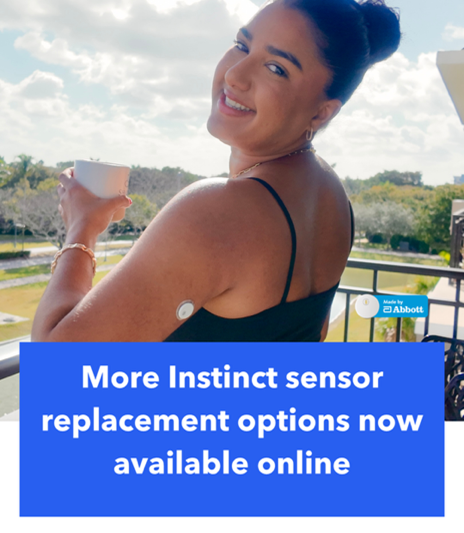
We know your time is valuable — and waiting on hold to get a sensor replacement isn’t ideal. That's why we've expanded our online replacement options for the Instinct sensor, made by Abbott, so you can handle it through a quick online form instead of calling in.
What Can I Request Online Now?
If you experience any of the following, you can now submit your replacement request entirely online:
- Change sensor
- Check sensor
- Scan error
- Sensor fell off
- Sensor updating
How It Works
It only takes a few minutes. Here's what to do:
- Grab your sensor serial number before you get started.
- Sign in to your account at www.Diabetes.shop
- Select "Request replacements" from the menu.
- Choose your MiniMed device and sensor model.
- Follow the prompts — and you're done.
That's it. Just a quick, straightforward process so you can get back to what matters.

Our New Phone System: The First Step in Enhancing Your Call-In Experience
April 30, 2026
We've made a change to our phone system platform, and this is just the first step in our plan to enhance the call-in experience to make it faster and easier. This platform enables us to implement enhanced features and streamline your experience. For now, we wanted you to be aware that you’ll notice a change in how you’ll connect with an agent.
When you call in now, you can just verbally describe why you're calling in your own words instead of using extensions like option #1 for technical support. For example, you can say:
"I’m having issues with my pump"
"I need to reorder supplies"
Our system will hear you and route your call to the right team. If you don't state a reason or the system doesn’t recognize what you’re saying, you'll be automatically routed to our Technical Support team.
We’ll be sure to update you as we continue to improve this experience. Please know this is a top priority for our teams.
Keeping Your App Manager Up-To-Date
April 24, 2026
I want to share a helpful tip to keep things running smoothly when using it with the MiniMedTM Mobile app. For the best experience, we recommend always keeping the App Manager’s operating system up to date as this can help improve connectivity.
Before you Update your App Manager
To make sure your App Manager can install updates, just confirm two things:
1. Your App Manager is connected to Wi-Fi
2. The App Manager’s battery is above 20%
How to Update your App Manager
There are two ways to update your App Manager.
Option 1: Let It Update Automatically
Your App Manager is set up to download updates automatically when it’s connected to Wi-Fi. When an update is ready, you'll see a pop-up notification on your screen. You have a few choices:
- Install now – Tap "Install" to update right away
- Remind me later – The notification will come back in 24 hours.
If you choose “Remind me later” 3 times, the update will install automatically as long as your battery is above 20%.
Option 2: Check for Updates Manually
If you want to check for an update manually or don’t see a pop-up notification, please use the following steps:
- Tap the Tools folder on your App Manager
- Open the Knox e-FOTA app
- Look at the Client Status at the top of the screen:
- Downloading – The update is on its way! Wait a moment, or tap "Check" if it seems stuck
- Awaiting Install – Tap "Install Now" to get started
What to Expect during the Update
Your App Manager will restart as part of the installation process. Once it does, simply enter your PIN and you're good to go!
For more information, visit our App Manager support page for additional tips and guidance.

Save Our Tech Support Number to Your Contacts
April 9, 2026
We’re working to improve your call center experience so that you can get the help you need, when you need it. In the meantime, save our support line number to your phone contacts. (210) 395-5500 - so it isn’t flagged as spam. This way, you’ll know when we’re calling and helps ensure you don’t miss a callback from our MiniMed 24-Hour Technical Support team.
We know that long wait times and missed callbacks are frustrating, and we appreciate your patience. Improving your experience is a top priority, and our teams are taking the necessary steps to make connecting with us easier and faster.
Sensor Scanning Tips *UPDATED
April 3, 2026
With an integrated device, communication between each of the components is key. If you’re seeing a "Scan Error" message on the MiniMedTM Mobile app when scanning a new sensor, try scanning your sensor again by placing it closer to the Near Field Communication (NFC) antenna on your compatible phone.
On most Android devices, the antenna is located on the back of the phone, so you'll want to scan the sensor by touching the BACK of your phone.
On an iPhone, scan the sensor by touching the TOP left-hand corner of your phone.
While scanning, make sure you don’t touch any buttons on the phone or the screen. Move your phone around slowly as needed to find the best position—proximity, orientation, and other factors can affect performance. (For example, a bulky or metallic case can interfere.)
You can also turn your phone off and back on and try scanning again.
If you’re still having trouble, we recommend you try turning NFC off and back on. Instructions vary based on your phone, but they should be located where you find your Wi-Fi and Bluetooth settings.
Step-by-step instructions on how to scan your sensor steps can be found here.
Patch Released for Android OS Update
April 2, 2026
If you use a Google Pixel phone and experienced issues pairing your sensor with the MiniMedTM Mobile app, an update is now available to help.
Google has released a patch following a recent Android operating system update on Google Pixel devices. We recommend installing the latest update to help improve connectivity - here's how.
If your Google Pixel settings are programmed to update your phone automatically, no action is needed.
If your phone is NOT set to update automatically, please follow these simple steps.
- Open the Settings app on your Pixel device.
- Scroll down and tap System.
- Tap on System update.
- Tap the Check for update button.
- Follow the on-screen instructions to download and install the update.
If your operating system updates have been paused, please follow these steps.
- Go to Settings.
- Tap on System.
- Tap on System update.
- Select the Settings icon.
- If updates have been paused, cancel the pause to enable updates to resume.
Users who were issued an App Manager are recommended to keep it as a backup. It does not need to be returned.
Android OS Update
March 31, 2026
Following a recent Google Pixel Android operating system update, users of our MiniMed™ Mobile app experienced difficulty pairing their Instinct sensor, made by Abbott, to their MiniMed™ 780G pump. A quick update on this issue and what we’re doing:
- We immediately engaged Google to work on a fix. Google engineers have confirmed they are actively working on a resolution and expect an update to be released this week.
- We shipped App Managers to impacted customers to bridge the gap.
- Our engineering team is strengthening our collaboration with Google to ensure faster communication and response on behalf of our customers moving forward.
- Our internal teams are evaluating longer term strategies to improve resilience to future software updates and maintain the reliability our users expect.
We’ll work to test updates in advance when possible in accordance to our rigorous quality standards and immediately look into solutions once we’re made aware.