.png)


App Manager CGM Receiver (display device)
The App Manager CGM Receiver enables the use of a MiniMedTM app to view CGM data and to help manage therapy using a MiniMed device. The App Manager CGM Receiver can only be used to access apps provided by MiniMed for diabetes treatment purposes.
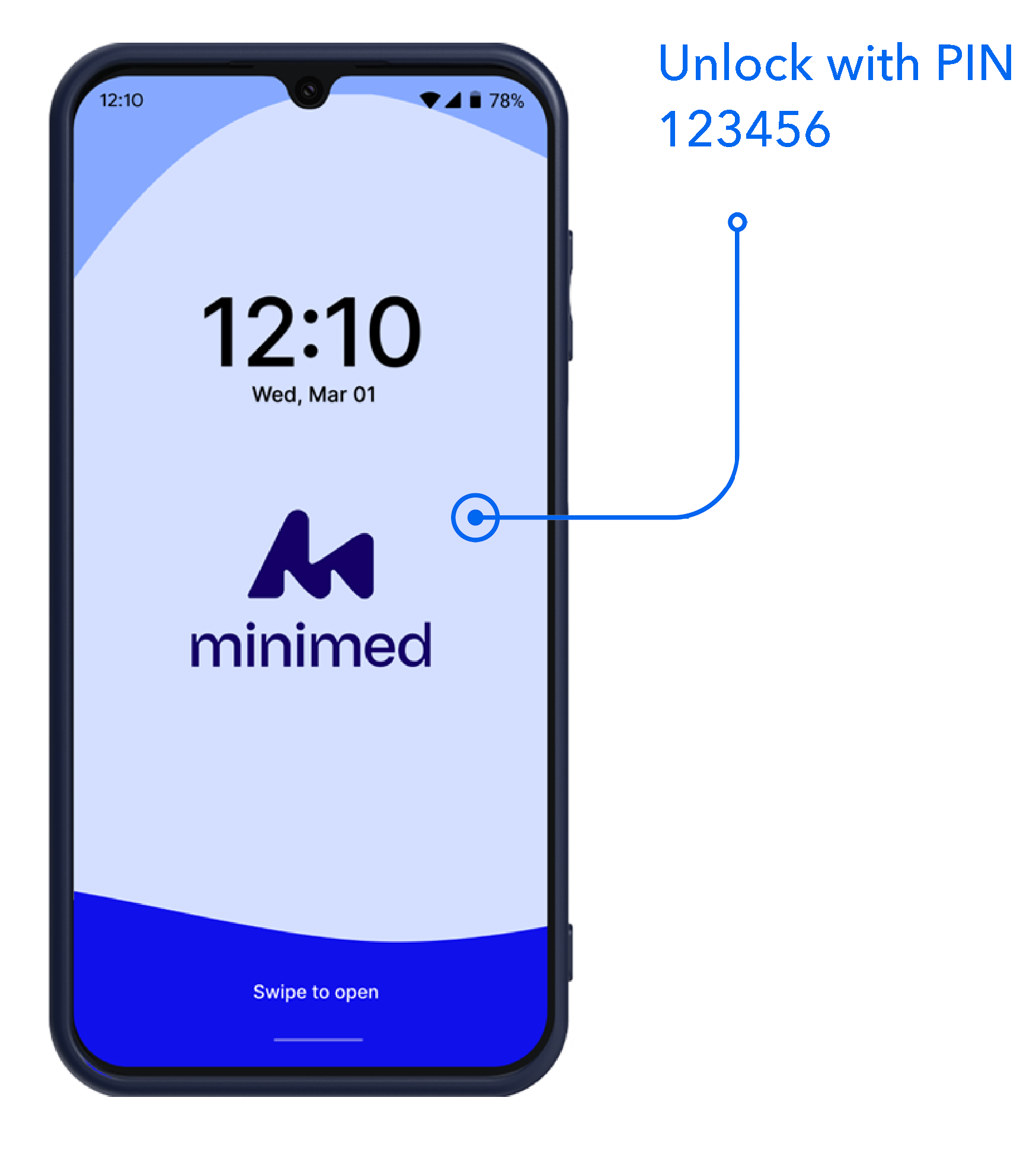
The App Manager CGM Receiver enables access to the MiniMedTM app for the MiniMed FlexTM system, MiniMedTM Mobile app for the MiniMedTM 780G system, and the MiniMed GoTM app for the MiniMed GoTM Smart MDI system.
You will receive an App Manager CGM Receiver if you:
- Don’t have a smartphone that is compatible with the MiniMed app and need an alternate display device.
- Have an insurance plan that requires us to include it with your first order, regardless of whether or not you have a compatible smartphone.
- For Medicare patients: If you are prescribed an Instinct sensor or Simplera CGM, you will be provided with a CGM receiver to use as your primary display device. This CGM receiver will display your blood glucose data within the MiniMed app that has been pre-installed on the display device.
Key tips to know
- Charge your App Manager CGM Receiver when you first receive it and then follow these steps for setup.
- Connect to Wi-Fi to sign in to a MiniMed app. (If you use a public Wi-Fi connection, there may be additional steps to accept terms and conditions from the service provider. This may require using someone’s Hot spot or other mechanism for internet before you can connect.)
- Stay connected to Wi-Fi in places like your home or plan to connect before you use the app. If you can't routinely connect to Wi-Fi, you may also purchase a SIM card with data from a phone store or other retailer. This will not change the functionality of the CGM Receiver but will allow you more consistent access to your data.
- You need to keep the CGM Receiver in close proximity in order to access CGM data and therapy features. Wi-Fi will also be needed to upload data for your doctor or care partners.
- A lock screen is required for security and shipped with a default PIN (123456). After set up, you can change the PIN or use additional biometric methods.
- To personalize settings for screen brightness and font, tap Display in the settings.
- Since the CGM Receiver is pre-loaded with all MiniMed apps, make sure to select the one that matches the prescribed therapy. New/updated apps might download after you've connected to Wi-Fi.
Frequently asked questions
The basics


Do I need an App Manager?


Do I need an App Manager?
To access a MiniMed app, you only need an App Manager if your smartphone isn’t compatible and/or your insurance plan requires that we include it as part of your order.
If I have a compatible phone but received an App Manager, do I still need it?
If I have a compatible phone but received an App Manager, do I still need it?
You may have received one because your insurance plan requires that one is provided. If you have your own compatible smartphone, please use this as a backup.
I didn't receive an App Manager but need one, how can I get one?
I didn't receive an App Manager but need one, how can I get one?
First, check to see if your phone is compatible. If it isn’t, call Resupply at 1-800-646-4633 (Monday through Friday from 8a.m. - 6p.m. CT).
What comes in the box?
What comes in the box?
The App Manager CGM Receiver box includes:
- App Manager CGM Receiver device with a case
- Quick Reference Guide, Radio Frequency Insert
- Charging cable
- SIM card removal tool (Optional, if you choose to add your own SIM card for data then this will come in handy)
The shipper box will also include a wall plug.
Can I download or use other apps with the App Manager?
Can I download or use other apps with the App Manager?
No, the App Manager can only be used with MiniMed apps and MiniMed-approved device management tools. Non-therapy features like texting and other apps are disabled. (This will remain the same even if you add your SIM card with a data plan.)
I see multiple MiniMed apps, how do I know which I should use?
I see multiple MiniMed apps, how do I know which I should use?
Since the App Manager is used for multiple MiniMed apps, make sure to select the one that matches the prescribed therapy. To figure out the app you need, refer to your user guide or training materials. New apps might download after you've connected to Wi-Fi since they will become available on your App Manager once released.
How often does the App Manager need to be charged?
How often does the App Manager need to be charged?
We recommend charging it every few days, depending on how often it’s used.
Set up
To set up your App Manager, plug it in and make sure it's fully charged.
Once charged:
- Press and hold the power button on the right side of the App Manager device until screen turns on.
- Swipe up when the prompt appears and then enter the default PIN: 123456. (The PIN can be changed later.)
- Then connect to Wi-Fi. Tap
 (to the left of MiniMed).
 - Tap Wi-Fi in the settings menu. Tap
 to turn Wi-Fi on, if it is not on.
 - Select a secure Wi-Fi network from the list of available networks and follow the prompts. (To connect to public WiFi, additional steps may be required by the service provider. You may even need to connect to someone’s personal Hot spot or other internet mechanism before you’re able to connect.)
- Confirm “Connected” appears under the current network.
- Tap < to return to the settings menu.
We also recommend confirming that Near Field Connection (NFC) is ON. This will follow the same steps as Wi-Fi and Bluetooth.
What if I don't have Wi-Fi?
What if I don't have Wi-Fi?
If Wi-Fi isn’t available, it may lead to the app logging out or issues with sensor scanning so it’s recommended to routinely connect. For the best experience, connect to Wi-Fi in the places you spend the most time (like at home). As an alternative, you may purchase a SIM card with a data plan from a phone store or other retailer.
Once set up, keep the app open in the background. If needed, you can ask someone to share Wi-Fi from the Hot spot on their smartphone to access the app, or plan to connect to a public Wi-Fi (like an office, clinic, or retail space). Connecting to public Wi-Fi may require additional steps like entering the Wi-Fi name and password and/or accepting terms and conditions.
How do I change the PIN number?
How do I change the PIN number?
When you first turn it on, enter 123456. To change the PIN:
1. Tap on the home screen (to the left of MiniMed).
2. Tap Settings.
3. Tap Screen Lock.
4. Enter the current PIN. This will either be the default PIN of 123456 or previously created PIN, if it’s already been changed.
5. Tap PIN.
6. Enter your new PIN twice.
7. You will see the settings menu when your PIN has been successfully updated. Use this new PIN when prompted.
In addition to the PIN, biometric methods, such as fingerprints and face unlock may also be used.
Can I adjust the settings like screen brightness?
Can I adjust the settings like screen brightness?
Yes, you can change the brightness, font size, and screen time within the Display options.
Daily use
Do I need to always be within a specific distance to the App Manager?
Do I need to always be within a specific distance to the App Manager?
You need to have it in close proximity and with an internet connection if you want to upload data to CareLinkTM Personal for your doctor to see reports, or enable a care partner to follow your system data remotely with the CareLinkTM Connect app.
For MiniMedTM 780G system: If you're only planning to use it for specific therapy features (like starting a sensor), you don’t need to carry it with you at all times.
MiniMed FlexTM or MiniMed GoTM system: Keep it with you at all times for easy access to therapy features, like calculating an insulin dose.
What if I get an error related to the internet connection?
What if I get an error related to the internet connection?
You will see a message that says “No Internet Connection” if the app closes and needs to be restarted. Confirm Wi-Fi is on, the Wi-Fi password is correct, and move closer to the router.
How do I start a new sensor?
How do I start a new sensor?
Ensure NFC is enabled before attempting to start the Instinct sensor. (Tap the icon > Settings > Connections > Tap NFC). It’s best to scan the sensor near the middle back of the CGM Receiver, where the NFC reader is found. For the steps to insert and scan your sensor, follow the steps here.
What if I get an error when scanning my sensor?
What if I get an error when scanning my sensor?
“Scan Error” occurs when the app is unable to scan your Instinct sensor. Try scanning the sensor again near the middle back of the CGM Receiver. During the scan, make sure you aren’t touching any buttons on the device or screen, and move the phone around slowly if needed. Proximity, orientation, and other factors like a bulky or metallic case can affect performance.
If you’re still having issues, try turning the CGM Receiver off and back on again.
If “Scan Error” continues, contact the 24-Hour Technical Support team at 1-800-646-4633.
What if I need to restart my App Manager?
What if I need to restart my App Manager?
Press and hold the Power button and Volume Down button simultaneously for a few seconds, then tap "Restart" on the screen when prompted. If you’re still having issues, contact 24-Hour Technical Support.
What happens if I need a replacement?
What happens if I need a replacement?
Evaluation for replacements will be conducted by 24-Hour Technical Support.
Where can I find the serial number?
Where can I find the serial number?
In some cases, like when you call Technical Support, we might ask for your serial number. To access it, remove the case and look under the address for the letters “SN” followed by 8 numbers.
System updates
Keep the App Manager Up to Date
Keep the App Manager Up to Date
The App Manager uses an Android operating system so routine updates will occur. We recommend keeping it up-to-date so you have the latest fixes and improvements.
How to Update
How to Update
To make sure your App Manager can install updates when they become available, just confirm two things:
- Your App Manager is connected to Wi-Fi
- The App Manager’s battery is above 20%
Option 1: Let It Update Automatically
Your App Manager is set up to download updates automatically when it’s connected to Wi-Fi. When an update is ready, you'll see a pop-up notification on your screen. You have a few choices:
- Install now – Tap "Install" to update right away
- Remind me later – The notification will come back in 24 hours
If you choose “Remind me later” 3 times, the update will install automatically as long as your battery is above 20%.
Option 2: Check for Updates Manually
If you want to check for an update manually or don’t see a pop-up notification, please use the following steps:
- Tap the Tools folder on your App Manager
- Open the Knox e-FOTA app
- Look at the Client Status at the top of the screen:
- Download - The update is on its way! Wait a moment, or tap "Check" if it seems stuck
- Awaiting Install - Tap "Install Now" to get started
After the Update
After the Update
Your App Manager will restart as part of the installation process. Once it does, simply enter your PIN and you're good to go!
If you want to confirm that the update is complete:
- Tap the Tools folder on your App Manager
- Open the Knox e-FOTA app
- Confirm that the Client Status (top section) says Updated and the Current Software Information (scroll to bottom) matches the Target Software