.png)


CareLinkTM Connect app training
For care partners, this app helps keep everyone in the loop. Up to five people can now follow a person using an insulin pump and receive high and low notifications.
How to download & install the app
Download via Apple® App Store for iOS compatible phones and at GoogleTM Play for AndroidTM compatible phones.
Overview and start up
1. Overview
For people with diabetes
- When using the MiniMedTM Mobile app, up to five care partners can view and receive alerts through the CareLink™ Connect app
- User needs to manually provide CareLinkTM Personal username to care partners
- Must accept care partner request to follow (will appear in CareLinkTM account once care partner sets up app)
For care partners
- Securely view glucose levels, graphs, trends, and high or low glucose alerts anywhere, for greater peace of mind
- Ability to view pump data
- Be more informed and supportive, without being intrusive
- Available for either iOS and AndroidTM platforms
- Informed of alerts and notifications
- Ability to follow one Medtronic customer
2. Start up
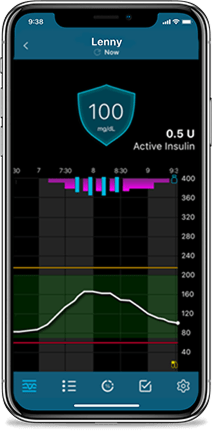
Care partners download the CareLinkTM Connect app from the Apple App Store® or Google PlayTM store.
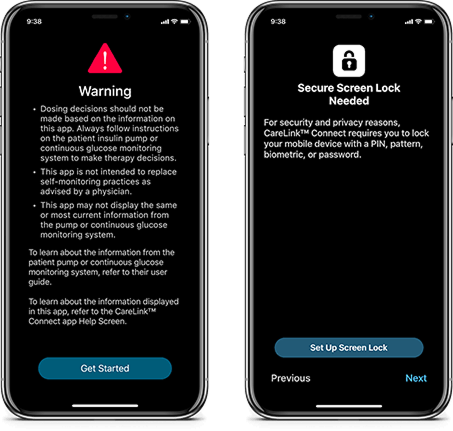
A dosing disclaimer warning must be acknowledged and a Secure Screen lock must be set up during initial App start up.
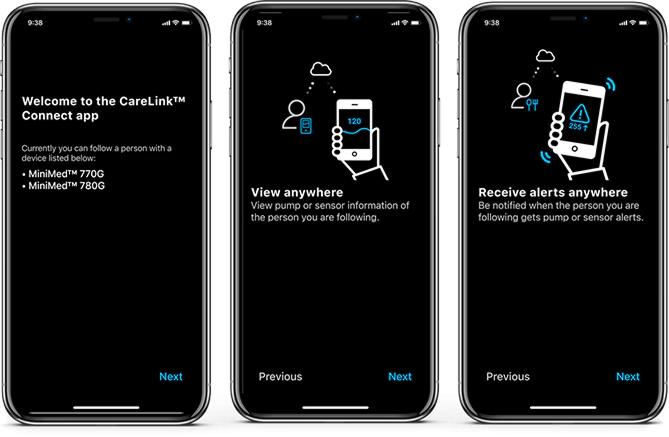
The app will guide the care partner through start-up screens which give an introduction on app features.
Note: The CareLinkTM Connect app is not intended to replace the real-time display of continuous glucose monitoring or insulin pump data on the pump users primary display device (i.e., the insulin pump). All therapy decisions should be based on the primary display device.
Time in Range data reflects the last 24 hours and requires a minimum of one sensor glucose (SG) value to display any data.
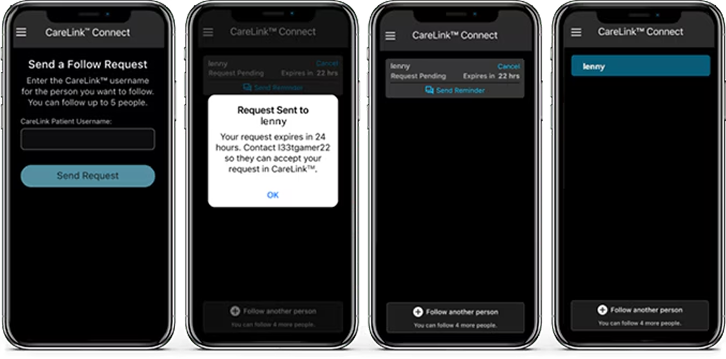
Next, the care partner must send a follow request by inputting the username of the CareLinkTM Personal account (provided by pump user). The pump user must accept this request within 24 hours in their CareLinkTM account.
Note: Pump user will receive an email notification stating they have a follow request pending and must approve the request via their CareLinkTM Personal account or MiniMedTM Mobile app. Follow requests must be approved within 24 hours or needs to be resubmitted.
Overview of screens
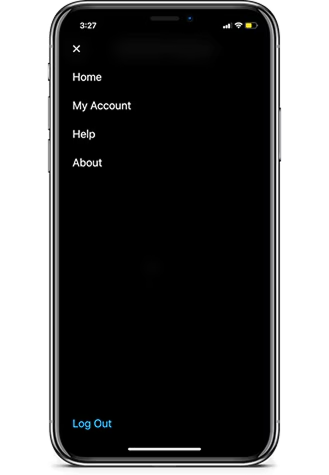
Menu
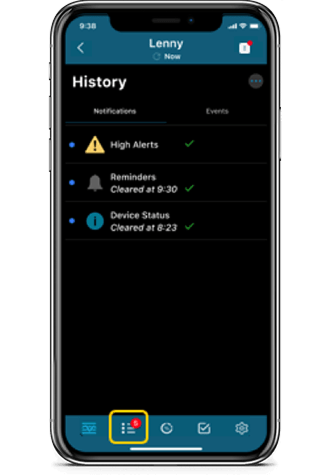
History
Home screen
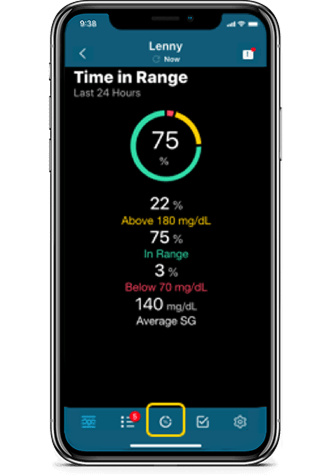
Time in Range
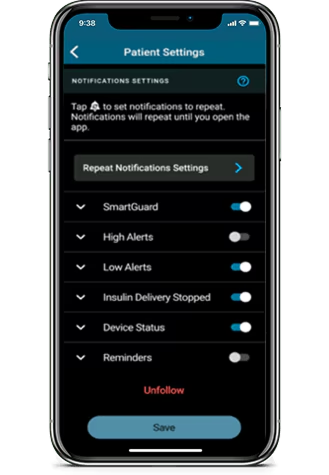
Notification settings
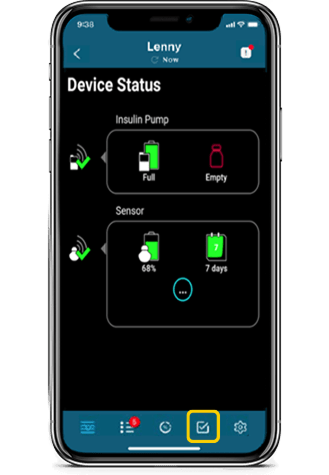
Device status
System notifications
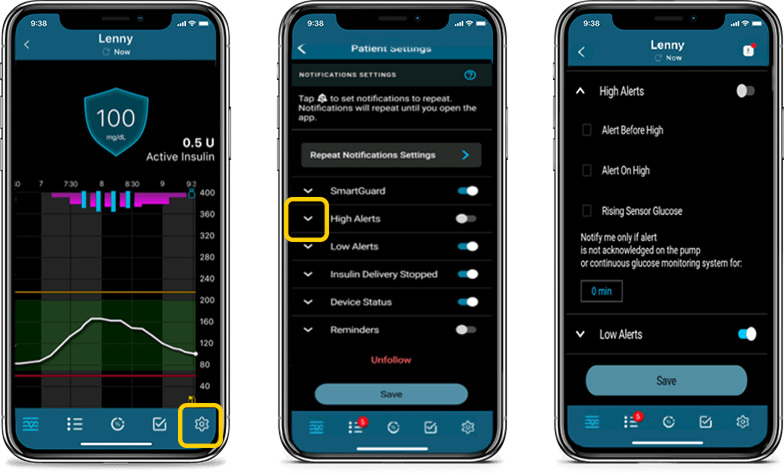
- Notifications should occur when app is in foreground or background
- If notifications are not received by care partner:
- Ensure app is open (not force closed)
- Ensure notifications are set up correctly in app
- Tap Edit
- Tap the alert category
- Choose which to receive and whether a delay is desired
- Check phone setting to ensure notifications for the app are turned on
Repeat notification
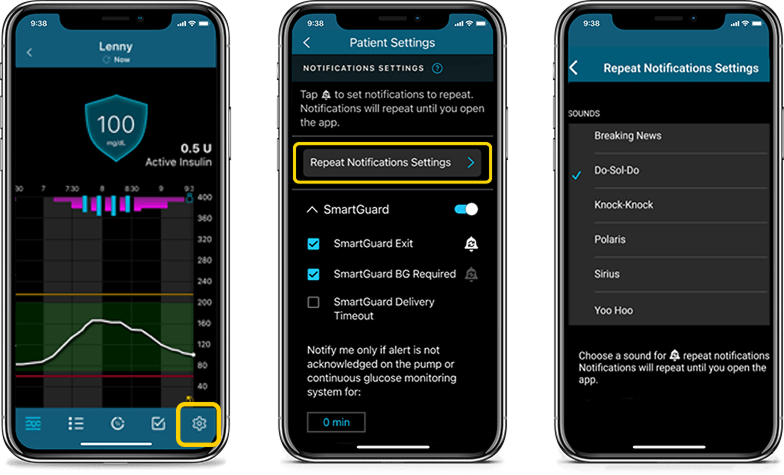
Some CareLinkTM Connect app notifications can be set to repeat.
If there is a  or
or  icon next to a notification type, it can be triggered by tapping to set repeat notifications off/on.
If on and you receive a notification, it will repeat until the app is opened.
Sounds for repeat notifications can also be personalized. Go to Patient Settings and then Repeat Notification Settings to choose what alert sound you would like.
Notifications will sound for 30 seconds and repeat every 60 seconds when set to repeat.
Integration with CareLinkTM software app
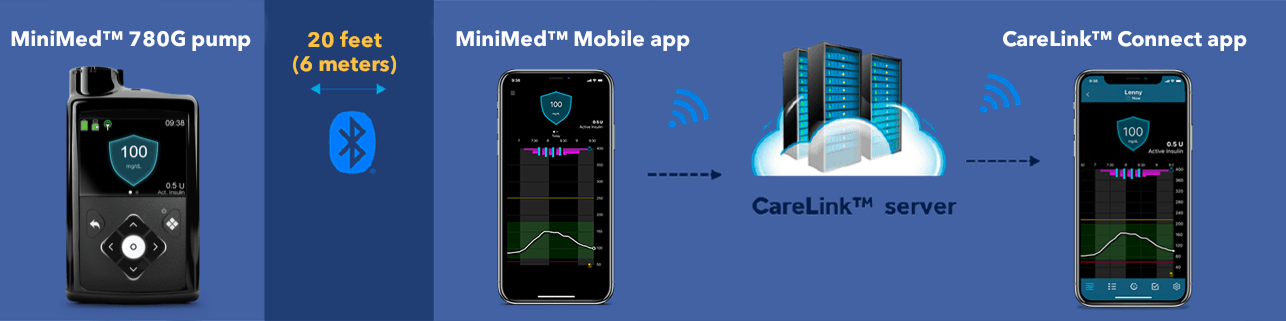
For the CareLinkTM Connect app to receive notifications and data:
The MiniMedTM Mobile app must:
- Be within 20 feet (6 meters) of the pump
- Have internet connection
- Be logged in CareLink™ Personal
- Have Sync to CareLink™ turned on
The CareLinkTM Connect app must:
- Have internet connection
- Be logged into CareLink™ Personal
Notifications appear when the MiniMed™ Mobile app:
- Is too far away from pump
- Has no internet connection
- Is logged out of CareLink™ Personal
- Has the Sync to CareLink™ feature off
Most recent data appears for 15 min
- No banner appears
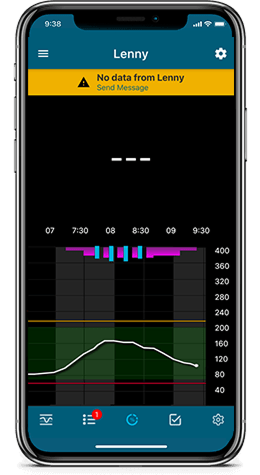
After 15 minutes, data fields are dashed
- banner appears
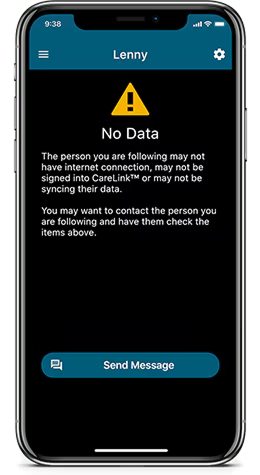
No data message
>24 hours
Frequently asked questions
How are care partners added?


How are care partners added?
- Adding a care partner is initiated in the CareLinkTM Connect app. Once care partners download the CareLinkTM Connect app, they will be prompted to create a CareLinkTM account in the app, which will redirect to the CareLinkTM website to complete the setup process. Once the account is created, they can click “Request to follow” and enter the pump user’s CareLink™ account username, then click “Send request.” The MiniMedTM Mobile user will have 24-hours to accept the request.
- A User Guide is also imbedded in the app and can accessed by tapping Menu, and then the Help section.
Can a care partner follow more than one MiniMedTM Mobile app user?
Can a care partner follow more than one MiniMedTM Mobile app user?
A care partner can follow up to 5 people on the MiniMedTM Mobile app.
Which notifications can a care partner receive?
Which notifications can a care partner receive?
Care partners can receive any of the notifications that the MiniMedTM Mobile app user has turned on in the pump by having that particular notification turned on in the CareLinkTM Connect app. Care partners can choose to receive less notifications if desired.
Does the CareLinkTM Connect app always show up-to-date data?
Does the CareLinkTM Connect app always show up-to-date data?
To view up-to-date data, the CareLinkTM Connect app user must be logged in and have internet connection on their phone. In addition, the MiniMedTM Mobile app user must have:
- Their pump and phone in range (about 20 feet)
- Their phone connected to internet access
- Sync to CareLink™ feature on
- Be logged into CareLink personal on the app
The CareLinkTM Connect app Home screen will indicate when data was last uploaded.
Can a care partner turn off notifications and alarms in the CareLinkTM Connect app?
Can a care partner turn off notifications and alarms in the CareLinkTM Connect app?
Yes, care partners can adjust notifications and alarms in the CareLinkTMConnect app. Also, depending on the phone's operating system, customers can control how they appear.