.png)


Alerts and messages
Device: MiniMed FlexTM insulin pump
Your pump has built‑in safety features that help keep you safe. If the pump detects something unusual, it sends a notification. Notifications include alerts and messages.
You will see alerts in the MiniMedTM app and on your pump. Alerts may appear as messages on your phone and may include lights, sounds, or vibration from the pump and your phone to get your attention.
The MiniMedTM app sends alerts in different ways, based on what is happening and how quickly you need to act. Although the pump may show status lights, you must go to the app to read the alert and take action. Once the alert is addressed in the app, the pump alert will be cleared.
When your phone is locked, alerts appear as a push notification. Tap the notification to see alert details and respond to the alert in the app.
Always keep the MiniMedTM app open on your mobile device. Force closing the app prevents the alerts from displaying on the lock screen.
Alerts are grouped into three levels: High, Medium, and Low priority.
Alerts

High priority alerts tell you about a problem that needs your attention right away.
When a high priority alert happens, you may notice:
- App banners: A message appears over the app screen. If you do not act, it moves to a banner on the Home screen.
- Pump notification light: The oval pump status button flashes red. For low glucose alerts, the down arrow light also turns on.
- Pump sound and vibration: Sound, vibration, or both happen based on your app settings. After 10 minutes, both sound and vibration happen if the alert is not fixed.
- The alert can repeat every 5 minutes until you respond or the problem is fixed.
Exceptions
- CALL FOR EMERGENCY ASSISTANCE: I HAVE DIABETES — This alert shows on the lock screen, even if privacy settings are on. The pump sounds and vibrates right away and repeats every 2 minutes.
- Charge pump now — The pump sounds and vibrates right away. Pump light color may change if an alert happens while the pump has low power and is charging. Some alerts do not have pump sound or vibration. These are marked with an asterisk (*) in the alerts list.
- High pump temperature while delivery is stopped — Pump sound and vibration happen right away.
- Delivery suspended is greater than 30 minutes — Pump sound and vibration happen right away.
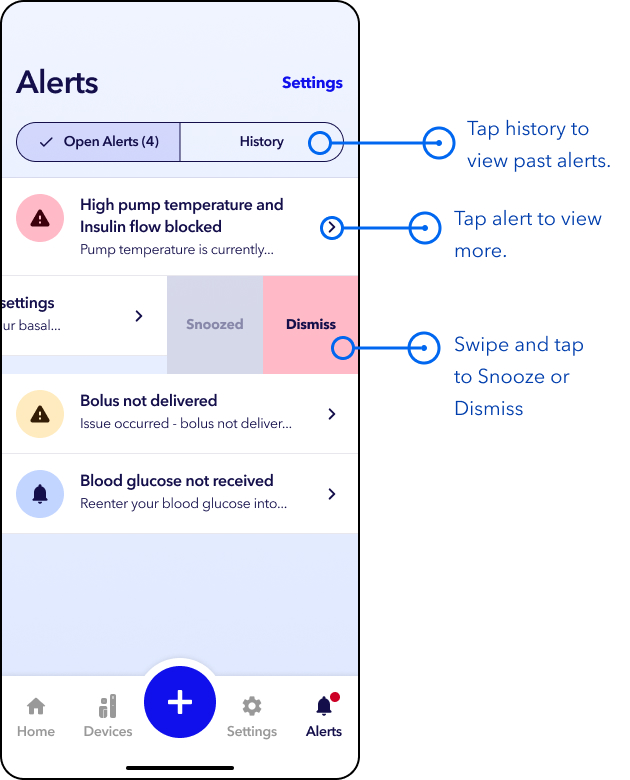
Example: High pump temperature and Insulin flow blocked

Medium priority alerts tell you about a problem that needs your attention soon.
When a medium priority alert happens, you may notice:
- App banners: A message appears over the app screen. If you do not act, it moves to a banner on the Home screen.
- Pump notification light: The oval pump status button flashes yellow. For low glucose alerts, the down arrow light also turns on.
- Pump sound and vibration: Sound, vibration, or both happen based on your app settings.
- Repeat alert: The alert repeats every 15 minutes until you respond or the problem is fixed.
Exceptions
- Alert on low alert – Repeats every 5 minutes until you respond.
- Alerts that do not have pump sound or vibration are marked with an asterisk (*) in the alerts list.
Example: Bolus not delivered

Low priority alerts tell you when there is a problem that requires you to respond to the alert.
When a low priority alert happens, you may notice:
- App banners: An alert screen will appear over the current app screen in view. If it is not addressed, it will show as an app banner on the MiniMedTM app Home screen.
- Pump notification light: Does not occur
- Pump sound and vibration: Does not occur
- Repeat alert: Does not occur
Exceptions
- App closed – Tap to reopen the app. You will not receive sensor glucose values or alerts while the app is closed.
Note: This alert appears only on the phone lock screen, not inside the app.
Example: Enter blood glucose

Messages give helpful information about the system and are not critical. They appear only as a banner on the app Home screen.
Exceptions
- Lost pump communication alert – A blue pump light turns on. Pump sound, vibration, or both may also occur.
Example: BG not received
Viewing alerts
Viewing alert history
A red dot on the Alerts icon in the menu bar on the Home screen means there is one or more open alerts. Tap the Alerts icon to view open alerts and alert history. If there is more than one alert, they are listed by priority, with the most important alert shown at the top.
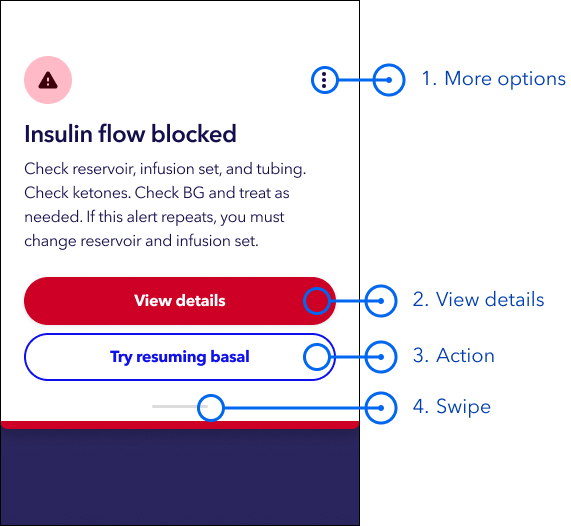
- More options — Tap here to see more options to respond to or dismiss the alert. Dismissing cancels the alert and moves it to alert history.
- View details — Tap this button to see more information about the alert.
- Action button — Tap this button to take the action you need to respond to the alert.
- Swipe up or tap the blue area to return to the app Home screen and view the trend graph.
Some alerts, such as glucose alerts, can be snoozed. If a Snooze button appears, tap Snooze to silence the alert for a set time. The alert will sound again after the snooze time if the issue continues.
Tips for always seeing your alerts:
- Keep vibration turned on for your mobile device.
- Do not force close the MiniMedTM app.
- Turn off automatic phone updates. Check that your phone is compatible before updating the operating system.
- Keep your pump, sensor, and mobile device close together (within 20 feet or 6 meters) to avoid a loss of communication. If the pump or sensor icons are gray, they are not communicating with the mobile device. Move them closer (within 6 feet/1.8 meters or less) to reconnect.
- Insulin delivery continues on the pump even if the devices are not communicating. Important alerts will still come through the pump. Reconnect the app to see alert details.
- For iOS users:
- Turn Bluetooth back on after entering into Airplane mode.
- Do not turn off Notifications or Critical Alerts in your phone settings.
- If you use Screen Time, add the MiniMed app to the Always Allowed.
- If using iOS 17 or later, do not use Assistive Access, as it may block alerts or prevent the app from connecting to the pump.
- For Android users:
- Turn Bluetooth on when Airplane mode is on.
- Keep Battery optimization turned off so the phone does not close the app.
- Do not turn off Notifications or Do Not Disturb Permission in your mobile device settings.
- If you use Digital Wellbeing, do not set an app timer for the MiniMed app.