.png)


URGENT MEDICAL DEVICE CORRECTION
MiniMed Go App Nighttime Notification issue
MiniMed GoTM Nighttime Notification Issue — Download
| Product Impact | Model/CFN Number |
|---|---|
| MiniMed GoTM app | MMT-8600 (iOS), MMT-8601 (Android) Versions: 1.0.0, 1.1.0 |
June 2026
Dear Valued Customer, Medtronic MiniMed Community member,
We are contacting you regarding MiniMed Go app software version 1.0.0 and 1.1.0 downloaded in Apple or Android devices that are paired with InPen Smart Insulin Pen and Simplera or Instinct sensor. We have identified an issue that may prevent you from receiving important nighttime notifications from the app. This notification provides instructions on how to correct the issue by updating your MiniMed Go app to the latest version. If you have the latest MiniMed Go app software version 1.2.0 or higher, no action is required.
Issue Description:
The MiniMed Go app (versions 1.0.0 and 1.1.0) features a “Set day and night” setting so you can customize limits and alerts that are different during the day and night. If you turn this OFF, the app is supposed to enable the same settings throughout the day and night (24 hours). However, this may result in your “Missed dose” or “Correct high glucose” alerts not being triggered during the nighttime period of 9:00PM to 6:00AM. (See figure 1 below). If the "Set day and night" setting is turned ON, "Missed dose" or "Correct high glucose" alerts will occur as expected.
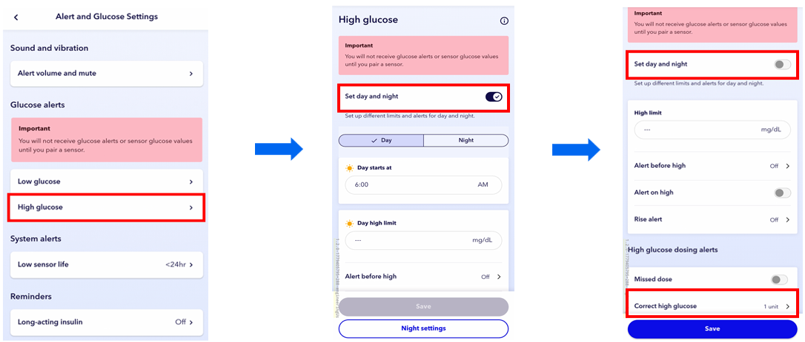
Figure 1: MiniMed Go app Alert Settings Workflow to Enable same Settings for Day and Night
Risk to Health:
If notifications fail to trigger due to this issue, and rapid-acting insulin doses are missed without the user’s knowledge and/or manually checking MiniMed Go app, it may lead to delayed therapy and an increased risk of hyperglycemia. As of June 3, 2026, three (3) complaints have been reported related to this issue, with no harm reported.
Actions Required:
Users of MiniMed Go app software versions 1.0.0 or 1.1.0 should update to version 1.2.0 or higher as soon as possible to resolve this issue. This update will enable the app to retain the user’s setting ("Set day and night" turned off) and apply the daytime setting around the clock.
For iOS Users:
To confirm the latest app version on your iOS device, follow the steps below:
- Open the App Store.
- Tap your profile icon at the top of the screen.
- Scroll to see pending updates.
- Tap Update next to the MiniMed Go app icon.
For Android Users:
To confirm the latest app version on your Android device, follow the steps below:
- Open the Google Play Store.
- Tap Menu, then select Manage apps & device.
- Apps with an update available are labeled “Update available.” You can also search for the MiniMed Go app.
- Tap Update next to the MiniMed Go app icon.
Regardless of whether your MiniMed Go app is affected or not, please acknowledge that you have read and understood this notification and have followed the actions listed in this notification by: completing and returning the confirmation form, scanning the QR code below with
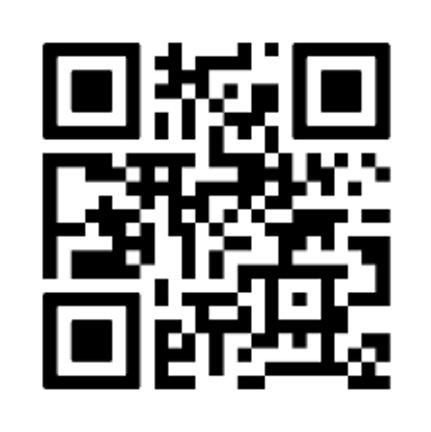
Regardless of whether your MiniMed Go app is affected or not, please acknowledge that you have read and understood this notification and have followed the actions listed in this notification by: completing and returning the confirmation form, scanning the QR code below with your phone or tablet, or by visiting https://info.medtronicdiabetes.com/FA1577 to acknowledge this communication.
Adverse reactions or quality problems experienced with the use of this product may be reported to the FDA's MedWatch Adverse Event Reporting program either online, by regular mail, or by fax as following:
- Complete and submit the report online: www.fda.gov/MedWatch/report.htmhttp://www.fda.gov/MedWatch/report.htm or
- For Regular mail or fax: Download the form at www.fda.gov/MedWatch/getforms.htm or call 1-800-332-1088 to request a reporting form, then complete and return to the address on the pre-addressed form or submit by fax to 1-800-FDA-0178.
If you have further questions or need assistance, please call the Medtronic MiniMed 24-Hour Technical Support line at 1-800-646-4633.
Sincerely,
Medtronic MiniMed