.png)


Alert and glucose settings
Device: MiniMed FlexTM insulin pump
Sound and vibration
The sound and vibration options are set in the Alert and glucose settings menu.You can turn "Sound" and "Vibration" on or off and use them individually or together. In this section, sensor alerts can be temporarily muted.
The Alert mute feature silences certain sensor alerts for a set period of time. When using this option, the Alert silence icon appears on the Home screen. The system will still display any alerts that occur, but there is no sound or vibration when they are silenced. This information can be reviewed in the Alarm History screen.
The Alert mute feature does not silence:
- High SG alert - when your sensor glucose (SG) value is above 250 mg/dL for more than three hours.
- Low SG alarm - when your SG value falls below 55 mg/dL with Instinct sensor or below 64 mg/dL with Simplera SyncTM sensor.
- SmartGuard exit alert - when the pump exits the SmartGuard feature.
To adjust volume level of app alerts:
1. From the app home screen, tap Settings.
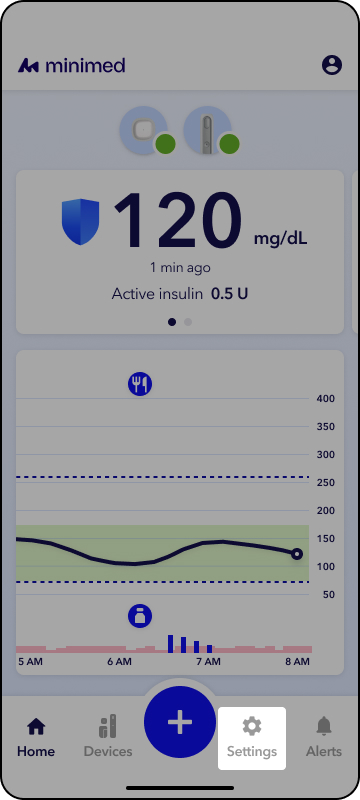
2. Tap Alert and glucose settings.
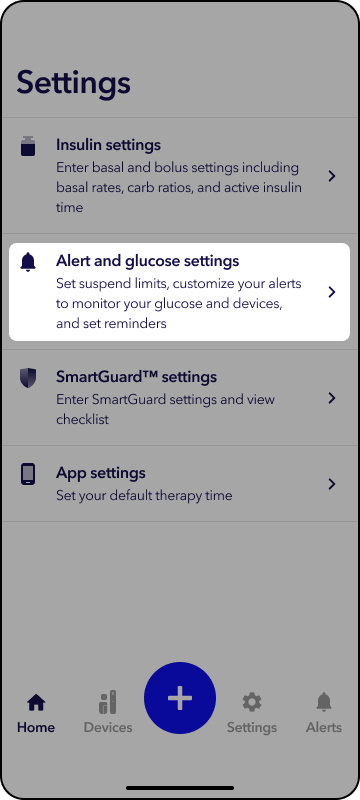
3. Tap App volume and mute.
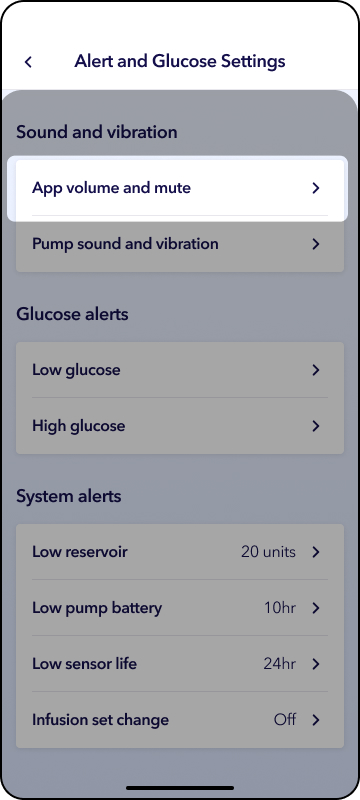
4. Drag the slider or tap on the desired volume. Tap Save.
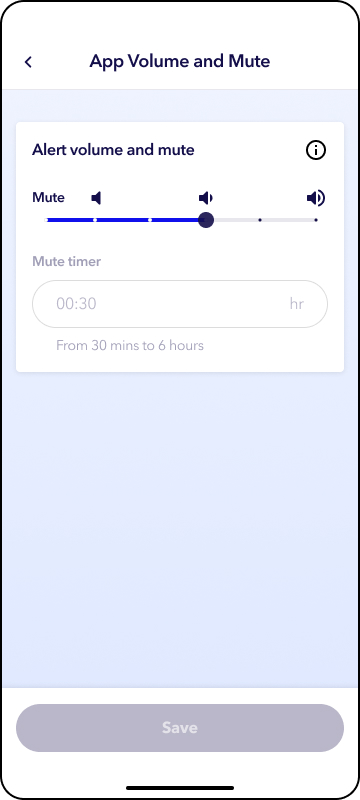
To mute all app alerts for a set period of time:
1. From the app home screen, tap Settings.
2. Tap Alert and glucose settings.
3. Tap App volume and mute.
4. Drag slider to the Mute position, or tap Mute.
5. Set duration, then tap Save.
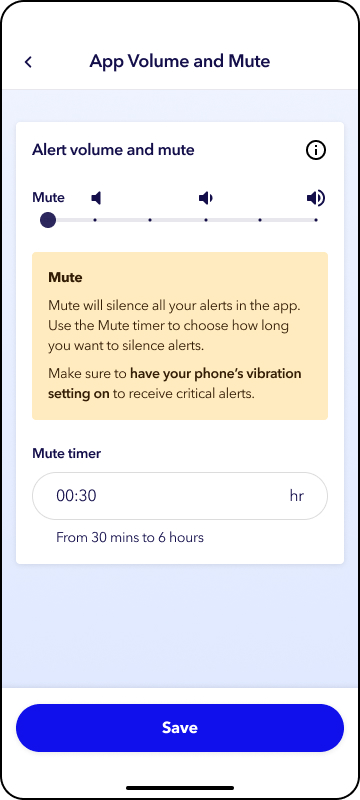
NOTE: Although alerts will be silenced for this time-period in the app, you will still receive alerts from the pump and alerts will appear in the alert history section in the app.
To stop the mute timer:
1. From the app home screen, tap  .
.
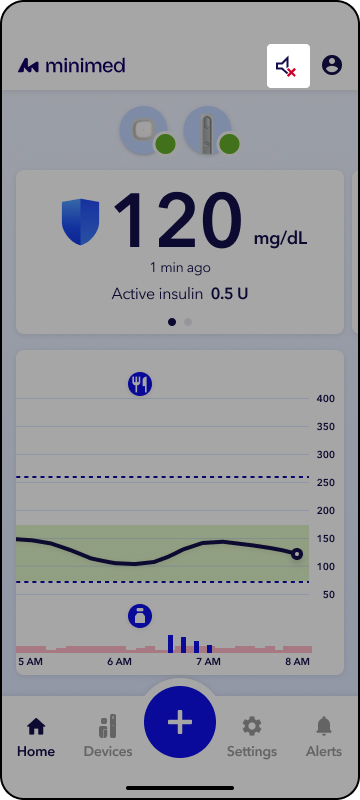
2. Select Stop mute timer.
Note: After the mute timer ends or is turned off, the app alert volume automatically returns to its previous volume.
All alerts can sound and appear on your app. Alerts that require immediate attention will also sound and appear on the pump. You can customize pump alert delivery by selecting sound, vibration, or a combination of both.
To adjust the pump’s sound and vibration:
1. From the app home screen, tap Settings.
2. Tap Alert and glucose settings.
3. Tap Pump sound and vibration.
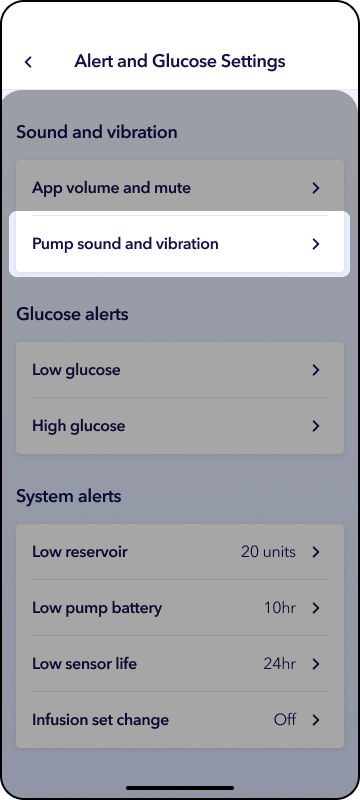
4. Adjust the settings according to your preference. Tap Save.
Glucose alerts notify patients when glucose levels are too high or too low. You can customize the high and low glucose alert settings. Some high and low glucose alerts and alarms are preset for safety and cannot be changed.
NOTE: The MiniMed Flex system has a fixed urgent low sensor glucose (SG) Alert that alerts when the SG is 55 mg/dL with Instinct sensor or below 64 mg/dL with Simplera Sync sensor. The fixed high alert on the MiniMed Flex system is when the SG is at or above 250 mg/dL for 3 hours. These cannot be changed.
Low glucose alert settings
Note: To learn more about each individual setting, tap the (i) icon in the top right part of the screen. Consult with your healthcare team before adjusting low glucose settings.
NOTE: The MiniMed Flex system has a fixed urgent low SG Alert that alerts when the SG is 55 mg/dL with Instinct sensor or below 64 mg/dL with Simplera Sync sensor.
1. From the app home screen, tap Settings.
2. Tap Alert and glucose settings.
3. Tap Low glucose.
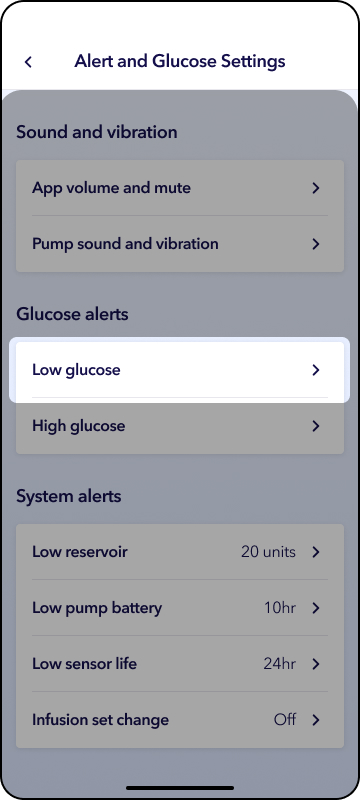
4. Tap Low limit box to set a low limit between 65-90mg/dL in 5 mg/dL increments.
5. Tap the toggle for the alert you wish to turn on or off.
6. Tap Suspend limit box to adjust value between 55mg/dL – 90 mg/dL. Consult with your healthcare team before adjusting suspend settings.
7. Tap the toggle for the suspend feature to be turned on or off. Consult with your healthcare team before adjusting suspend settings.
Note: Suspend before low is defaulted on with a suspend limit of 55 mg/dL while in manual mode.
8. Tap the Duration box under Snooze setting to adjust your low alert snooze time frame.
9. Tap Save.
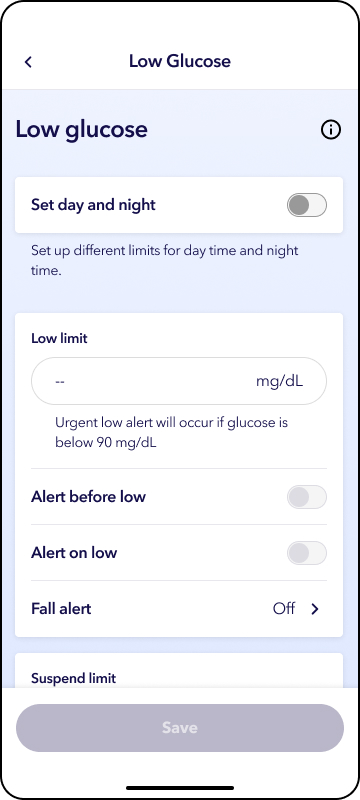
You can choose different glucose alert settings for daytime and overnight. Just follow these steps in the app to make changes:
10. Tap the toggle next to Set day and night.
11. Select time for Day start at.
12. Follow steps 4-8 to adjust low glucose settings for the daytime.
13. Tap Night settings.
14. Follow steps 4-8 to adjust low glucose settings for the daytime.
15. Tap Save.
High glucose alert settings
NOTE: To learn more about each individual setting, tap the (i) icon in the top right part of the screen. Consult with your healthcare team before adjusting high glucose settings.
NOTE: The fixed high alert on the MiniMedTM Flex system is when the sensor glucose (SG) is at or above 250 mg/dL for 3 hours. These cannot be changed.
To adjust high glucose alert settings:
1. From the app home screen, tap Settings.
2. Tap Alert and glucose settings.
3. Tap High glucose.
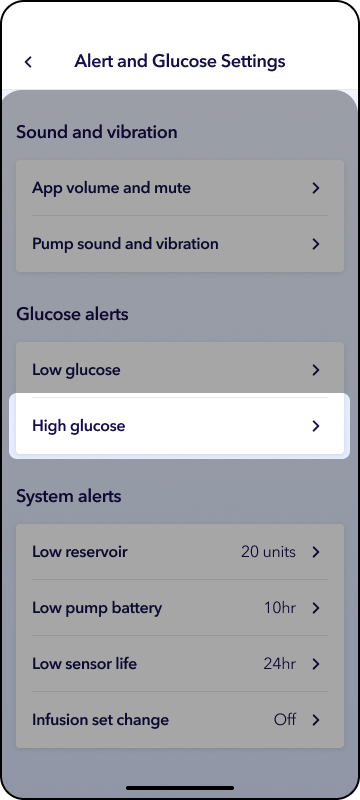
4. Tap High limit box to set a high limit value.
5. Tap the alert you wish to turn on or off.
6. Tap the Duration box under Snooze setting to adjust your high alert snooze time frame.
7. Tap Save.
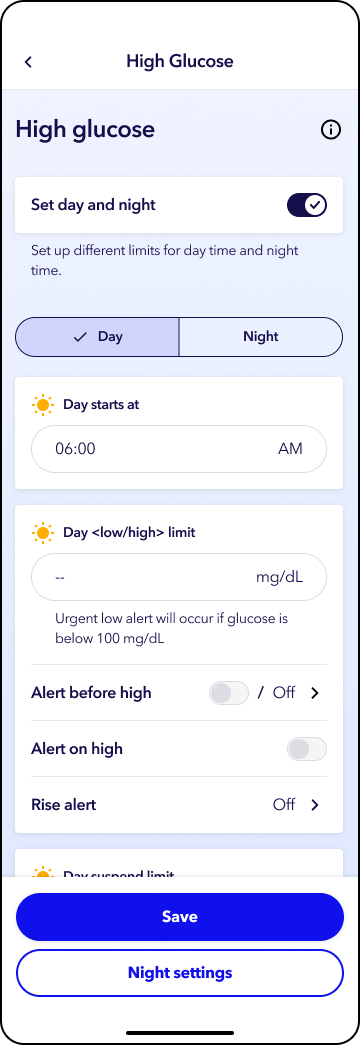
If you would like different settings for daytime and nighttime, tap the toggle next to Set day and night.
9. Select time for Day start at.
10. Follow steps 4-6 to adjust low glucose settings for the daytime.
11. Tap Night settings.
12. Select time for Night start at.
13. Follow steps 4-6 to adjust low glucose settings for the daytime.
14. Tap Save.
2. Tap Alert and glucose settings.
3. Scroll to system alerts and tap the reminder you would like to adjust.
Default settings
- Low Reservoir — defaults to notifying you when there are 20 units left in the current reservoir.
- Low pump battery — defaults to ON and will alert when there is <10 hours of battery life remaining.
- Low sensor life — defaults to OFF but can be set to notify you when there are <24 hrs or <12 hrs of sensor life remaining depending on the sensor you are using.
- Infusion set change — defaults to OFF but can be set to notify you when it is time to change your infusion set.
- The set change reminder can be set from 2-7 days depending on the type of infusion set you are using.