.png)


SmartGuardTM Checklist
Device: MiniMedTM 780G insulin pump
Pump software version: 6.42 and 6.61 (Find software version)
See SmartGuard Checklist for version 6.21 below.
The SmartGuardTM Checklist screen indicates what’s needed to start or continue using the SmartGuardTM feature.
To use the SmartGuard Checklist:
1. From the Home screen, press  Menu select, and then select
  Menu shield.
2. Select SmartGuard Checklist.
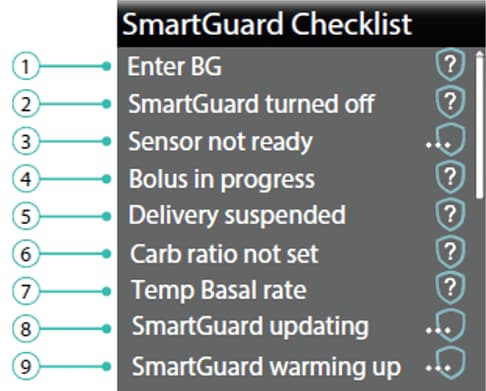
SmartGuard Checklist
| Line | If this appears | Do this |
|---|---|---|
| 1 |  | The system is using the recent BG meter reading to calibrate the sensor. |
 | Enter a new BG meter reading. | |
 | The system requires a BG reading and will ask when it is ready. | |
| 2 |  | Turn on the SmartGuard feature. |
| 3 |  |
|
 | Turn on the Sensor feature in Settings > Device Settings. | |
 | Pair the pump and CGM device. | |
| 4 |  | Wait until the bolus is complete or stop the bolus before the SmartGuard feature can be used. |
| 5 |  | If insulin delivery is suspended, the SmartGuard feature cannot be used. Treat low BG as instructed by a healthcare professional. |
| 6 |  | Enter a carb ratio in the Bolus Wizard feature or in the Bolus Wizard Setup screen. |
| 7 | 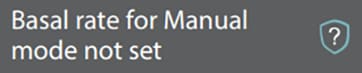 | When no basal pattern is set, the SmartGuard checklist will display "Basal rate for manual mode not set." You must program, confirm, and save a basal pattern before the pump will enter SmartGuard. |
 | When a basal pattern is set and the pump is currently running a temp basal, the SmartGuard checklist will display "Temp Basal rate". Stop the temp basal rate delivery before the SmartGuard feature can be used or wait until the temp basal rate delivery is complete. | |
| 8 |  | If SmartGuard active insulin is updating, it will take up to five hours to complete. Wait for the update time to end before the SmartGuard feature can activate. |
| 9 |  | Wait for the SmartGuard feature to gather insulin delivery history and determine the basal rate. |
 displays, move the pump and sensor closer together. It may take 15 minutes to find the sensor signal. If after 30 minutes the pump and sensor are still not communicating, a Lost sensor signal alert appears. Check that the sensor is still inserted in the skin. Move the pump closer to the sensor.
| Line | If this appears | Do this |
|---|---|---|
| 1 |  | Enter a new blood glucose (BG) meter reading. |
 | ||
 | The system requires a BG reading and will ask when it is ready. | |
| 2 |  | Turn on SmartGuard in the SmartGuard menu. |
| 3 |  | a) Confirm the pump shows a sensor serial number on the Paired Devices screen. Make sure the pump is paired with a sensor. b) Check your Home screen. If you see the connection icon with a red cross move your pump and transmitter closer together. The pump will try to find the transmitter signal which may take 15 minutes. If after 30 minutes the pump and transmitter are still not communicating, you will receive a Lost sensor signal alert. Check that the sensor is still inserted in the skin and the transmitter and sensor are still connected. Move your pump closer to your transmitter. c) If your sensor glucose is outside of the 50 to 400 mg/dL range, your pump will not enter the SmartGuard™ feature. |
 | Turn on the sensor in Settings > Device Settings. | |
 | Pair the pump and sensor. | |
| 4 |  | Wait until the bolus is complete or stop the bolus yourself before the SmartGuard™ feature can be used. |
| 5 |  | If insulin delivery is suspended, the SmartGuard™ feature cannot be used. Treat low BG if necessary, as instructed by your healthcare professional. |
| 6 |  | When you turn on the Bolus Wizard™ feature for the first time, enter your Carb Ratio in the Edit Carb Ratio screen. You can also enter your Carb Ratio in the Bolus Wizard™ Setup screen, even if the Bolus Wizard™ feature is not turned on. |
| 7 |  | If a temp basal is currently active, you must wait until it has completed or cancel the temp basal yourself before the SmartGuard™ feature can be used. |
| 8 |  | If SmartGuard™ active insulin is currently updating, it will take up to 5 hours to complete. You must wait until this amount is updated before the SmartGuard™ feature can be activated. |
| 9 |  | Wait for the SmartGuard™ feature to gather insulin delivery history and determine the basal rate. |