.png)


Status screen
Device: MiniMed™ 780G insulin pump
Pump software version: 6.21, 6.42, and 6.61 (Find software version)
The Status screen provides access to information about the pump and information about the sensor. The Status screen also provides the option to suspend all insulin delivery or resume basal insulin delivery.
Use the Status screen to access the following screens or options:
| Status or option | Description |
|---|---|
| Stop Bolus | This option appears when a bolus delivery is in progress. Select Stop Bolus to stop the active bolus. |
| Suspend All Delivery or Resume Basal | This option indicates whether insulin delivery is currently suspended. Select Suspend All Delivery to suspend insulin delivery. Select Resume Basal to resume basal insulin delivery. For more information, see suspending all insulin delivery and resuming basal insulin delivery. |
| SmartGuard Checklist screen | This screen shows a list of the required conditions before the pump can use the SmartGuard feature. For more information, see the SmartGuard Checklist. |
| Pump status screen | This screen shows a detailed view of the pump status, the reservoir status, infusion set status, battery status, pump serial number, pump name, model number, and other pump details. |
| Sensor status screen | This screen appears when the Sensor feature is turned on. The Sensor status screen includes sensor life, transmitter battery life, and shows the serial number and version number of the transmitter. |
To view the status screens:
- From the Home screen, press Select.*
- Select Status.
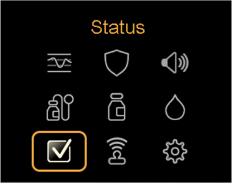
- Press the up arrow or the down arrow to select a status screen, then press Select.
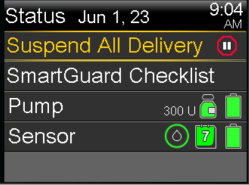
*Here’s a shortcut: press the Up arrow from the Home screen to access the Status screen.