.png)


Sensor and transmitter frequently asked questions
Find answers to frequently asked questions related to troubleshooting and best practices for your MiniMed sensor and transmitter.
Top searched questions
Why are my CGM readings different to finger sticks?


Why are my CGM readings different to finger sticks?
Your blood glucose meter measures glucose levels in your blood. The glucose sensor measures glucose in the fluid surrounding your cells. Glucose travels between these two areas. Most of the time glucose travels from your blood vessels into the fluid. So, your blood glucose (BG) meter readings and sensor glucose (SG) readings – let’s call them BGs and SGs – will be close but will rarely match exactly. This difference is normal and should be expected.
How long do MiniMed sensors last?
How long do MiniMed sensors last?
Sensors compatible with MiniMed devices have varying wear time. Find the different times for each sensor Compare sensors.
What do I do if my pump notifies me that my Instinct sensor failed to start?
What do I do if my pump notifies me that my Instinct sensor failed to start?
When this happens, use the MiniMed™ Mobile app to restart the sensor. If the alert happens again, don’t remove the sensor. Call 1-800-646-4633, option 1 for support.
How do I insert the GuardianTM sensor on the back of my upper arm?
How do I insert the GuardianTM sensor on the back of my upper arm?
What do these alerts or alarms mean on the MiniMedTM 780G pump?
What do these alerts or alarms mean on the MiniMedTM 780G pump?
Visit the MiniMed 780G alerts and alarms page to learn what type of notifications you can receive. Check out the user guide for a complete list of alerts and alarms.
Sensor replacement help


How do I get a replacement sensor?
How do I get a replacement sensor?
You can request a sensor replacement on Diabetes.shop for the following sensors:
- Instinct sensor, made by Abbott
- Simplera SyncTM sensor
- SimpleraTM sensor
- GuardianTM 4 sensor
- GuardianTM Sensor 3
Get your sensor lot number ready before you begin the process. You can find this number on the sensor packaging. Watch this video for more information.
Note: For replacements of the Instinct sensor, you will need your sensor serial number.
I am still experiencing issues with my transmitter after troubleshooting. What can I do?
I am still experiencing issues with my transmitter after troubleshooting. What can I do?
If you are still experiencing issues, you can request a replacement.
Instinct sensor help
What do I do if my pump notifies me that my Instinct sensor failed to pair?
What do I do if my pump notifies me that my Instinct sensor failed to pair?
This notification means that the sensor couldn’t pair due to a connection issue. When this happens, use the MiniMedTM Mobile app to restart the sensor. If the alert happens again, don’t remove the sensor. Call 1-800-646-4633, option 1 for support.
What do I do if my pump notifies me that my Instinct sensor failed to start?
What do I do if my pump notifies me that my Instinct sensor failed to start?
When this happens, use the MiniMedTM Mobile app to restart the sensor. If the alert happens again, don’t remove the sensor. Call 1-800-646-4633, option 1 for support.
My sensor won’t scan. What do I do?
My sensor won’t scan. What do I do?
Here are a few helpful tips to remember when scanning a new Instinct sensor:
- Ensure NFC (near field communication) is turned on in your mobile device. This feature is used to pair your sensor to your pump. For iPhone users, the NFC antenna is always on. For Android/App Manager users, while NFC is often on by default, be sure that it is toggled on. You can do this by opening the settings menu and search for NFC in the search bar and toggle on.†
- Where and how you hold your phone matters. While scanning, make sure you don’t touch any buttons on the phone or the screen. Move your phone around slowly as needed to find the best position—proximity, orientation, and other factors can affect performance. (For example, a bulky or metallic case can interfere so remove the case before scanning.)
- You can also turn your phone off and back on and try scanning again. If you’re still having trouble, we recommend you try turning NFC off and back on. Instructions vary based on your phone, but they should be located where you find your Wi-Fi and Bluetooth settings.
† Directions above vary depending upon device. Check your mobile device’s online user guide for more info.
Why do I keep losing my sensor and pump connection?
Why do I keep losing my sensor and pump connection?
Here are a few helpful tips to remember when scanning a new Instinct sensor:
- Ensure NFC (near field communication) is turned on in your mobile device. This feature is used to pair your sensor to your pump. For iPhone users, the NFC antenna is always on. For Android/App Manager users, while NFC is often on by default, be sure that it is toggled on. You can do this by opening the settings menu and search for NFC in the search bar and toggle on.†
- Where and how you hold your phone matters. While scanning, make sure you don’t touch any buttons on the phone or the screen. Move your phone around slowly as needed to find the best position—proximity, orientation, and other factors can affect performance. (For example, a bulky or metallic case can interfere so remove the case before scanning.)
- You can also turn your phone off and back on and try scanning again. If you’re still having trouble, we recommend you try turning NFC off and back on. Instructions vary based on your phone, but they should be located where you find your Wi-Fi and Bluetooth settings.
† Directions above vary depending upon device. Check your mobile device’s online user guide for more info.
What can I do to help reconnect my sensor and pump?
What can I do to help reconnect my sensor and pump?
If your sensor disconnects from your pump:
- Move the pump closer to the sensor.
- Wear the pump on the same side of your body as the sensor, ideally with a clear line of sight.
- Avoid having your body or objects between the pump and sensor.
- Separate your pump and sensor from other wireless devices that may cause interference or turn off interfering devices if possible.
These steps can help minimize future connection interruptions.
If you have additional concerns about your connectivity, please contact MiniMed for support at 1-800-646-4633, option 1.
Why am I seeing gaps or dotted lines in my sensor glucose (SG) readings?
Why am I seeing gaps or dotted lines in my sensor glucose (SG) readings?
Gaps or dotted lines in your SG graph usually mean your sensor and pump briefly lost their wireless connection. Both devices are designed to reconnect automatically, and short interruptions do not disrupt your therapy.
SmartGuardTM technology is designed to operate safely, even if communication between your pump and sensor is temporarily interrupted.
If the pump and sensor are disconnected for 30 minutes or longer, your pump will alert you with a Lost Sensor alert.
When the connection is restored, any SG data collected during the interruption will appear on your graph as a dotted line.
Transmitter help
When and how should I charge the transmitter?
When and how should I charge the transmitter?
Charging your transmitter after each sensor use is important so your transmitter battery lasts 7 days.
When the transmitter is charging, a green light flashes on the gray charger. When charging is complete, the green light on the charger turns off. It can take up to two hours to fully recharge, but typically only takes 15 to 20 minutes. A fully charged transmitter can be used for a maximum of seven days without recharging.
Note: Your transmitter may look different, but the steps to charging it are the same as shown here.
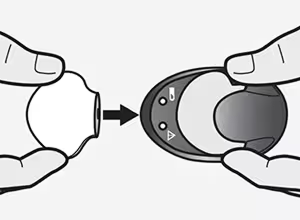
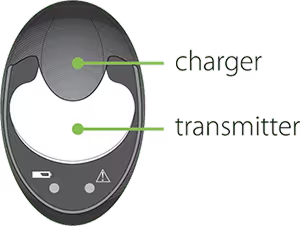
Removing the transmitter from the charger
When you remove the transmitter from the charger, a green light should flash on the transmitter. If you don’t see the green light flash on the transmitter, place the transmitter back on the charger until it is fully charged.
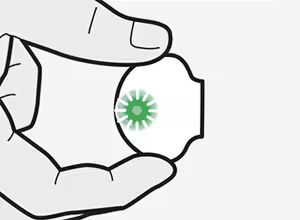
Troubleshooting
If you connect your transmitter to the charger and you see no lights on the charger or a flashing red light, replace the AAA battery in the charger. If the green light stays on without flashing when you connect the transmitter, disconnect it, wait at least 15 seconds, and then try reconnecting.
If there are still no lights on the charger after replacing the batteries, contact 24-Hour Technical Support at 1-800-646-4633 and select option 1.
Check out more transmitter battery tips.
What do I do if my transmitter does not flash a green light when connected to the sensor?
What do I do if my transmitter does not flash a green light when connected to the sensor?
If you do not see a green light, follow these steps:
- Try to disconnect the transmitter, wait for several seconds and then reconnect. If the green light still does not flash, charge your transmitter.
- If that doesn’t work, double check to make sure the sensor is fully inserted into your body, and review the technique on how to insert correctly. Check out the Changing Your Sensor video for steps on how to insert correctly.
Guardian™ sensor help
What can I do to help my Guardian sensor last?
What can I do to help my Guardian sensor last?
How long your sensor lasts can depend on many factors, and we know things happen in day-to-day life! Here’s what you can do to help your GuardianTM 4 sensor last:
- Find your sweet spot: The GuardianTM 4 sensor is designed and approved to only be worn on the back of the upper arm* which makes it the perfect spot for optimal sensor performance and longevity. So, make sure to stick with this location for the best experience! Don’t forget to choose a flat area on the back of your upper arm where you can “pinch an inch” that’s also free of scar tissue.
- Prep the skin: Before sensor insertion, it's important to prep your skin properly. Clean, dry skin is key. Some soaps have oils that can interfere with adhesive sticking, so give the area a quick wipe with an alcohol swab. And remember, let it dry completely before inserting the sensor!
- Get it to stick: After insertion, when removing the needle from the sensor, hold the base of the sensor firmly in place to prevent any movement that could impact performance. Don't forget about the two pieces of Oval Tape included with your sensor kit. One covers the base, and the other helps secure the transmitter. Feel free to add extra tape if you're extra active or live in a humid area.
- Do not worry if Sensor Updating appears! This is a safety feature that's most likely to happen on the first day. There's nothing you need to do unless your pump alerts you. Most of the time, it resolves on its own in an hour. But if it lasts for more than 3 hours, replace the sensor, and request a replacement sensor.
- Use your resources: If you’re looking to dive deeper, you’ve come to the right place. Need a refresher on how to insert your sensor? Check out this one-handed arm insertion video from our very own Ambassador, Rob Howe. Getting help from a friend? This video is the one for you. Need handy hints for making sure your sensor stays put? This Tape Tips Guide can help.
How do I insert the GuardianTM sensor on the back of my upper arm?
How do I insert the GuardianTM sensor on the back of my upper arm?
Do I need to use 2 pieces of tape for every GuardianTM sensor?
Do I need to use 2 pieces of tape for every GuardianTM sensor?
Yes, it’s recommended that you use the 2 pieces of tape included with your GuardianTM sensor. There should be a piece of tape covering the sensor and a piece of tape covering the borders of the transmitter. This ensures that the transmitter doesn’t pull away from the body if it gets caught on something, for example, clothing.
What do I do if I have skin irritation?
What do I do if I have skin irritation?
- Change the sensor and insert it into a different approved location or seek guidance from your healthcare provider for another location.
- Avoid sites where clothes may rub, where your body bends a great deal and your beltline if possible. These areas present a higher risk of the sensor and transmitter being accidentally pulled out.
- Do not insert the sensor into an area that is lean, scarred, or hardened. If inserted in these areas, it may decrease the flow of interstitial fluid, or the sensor may kink.
- Try different orientation for the sensor and transmitter. For example, insert so the sensor is on the bottom and the transmitter sits on top. This orientation may help prevent a teeter-totter action at the sensor and transmitter connection which could lead to a lost signal.
Skin sensitivities, allergies, and skin reactions
Allergies and skin reactions such as itching, rashes or bumps may occur. When you notice them, determine the cause and use a different product. If the site becomes irritated or inflamed, the set or sensor should be removed and inserted in a new location.
Check out our helpful Tape Tips and Site Management.
What do I do if my sensor site bleeds?
What do I do if my sensor site bleeds?
Before applying tape, apply pressure to the sensor insertion site until the bleeding has stopped. Once stopped, wipe away the excess blood gently, dry the area, then apply the tape. If there is too much blood, change out your sensor. If bleeding persists, please contact your healthcare provider.
What is the Sensor Updating alert and why am I getting it?
What is the Sensor Updating alert and why am I getting it?
Select your sensor to get information about the Sensor Updating alert:
How do I prevent getting CGM alerts at night?
How do I prevent getting CGM alerts at night?
CGM alerts at night may be caused by a few different reasons ranging from sensor insertion to site placement. Here are a few tips to help prevent getting CGM alerts in the middle of the night.
- Sensor insertion, site placement, and taping make a difference. For your sensor to work its best, avoid sites where clothing may rub or constrict, where your body naturally bends which may cause the sensor to pull out and where there is a lot of pressure. See how to insert and tape the sensor properly.
- If you use the Guardian™ Sensor 3, know your calibration status. The calibration icon shows how much time is left until your next scheduled calibration is due and calibrating before bed helps reduce the chance of needing a calibration overnight while sleeping.
- Plan ahead. Sleeping in on the weekend? Summer schedule different from the rest of the year? If your schedule changes, think about how your calibration schedule may need to be adjusted to help avoid any unwanted alerts and alarms.
- Customize nighttime alert settings. Talk to your healthcare team about high and low glucose limits overnight to make sure alerts are personalized to meet your needs. You may consider setting both high and low limits differently for the overnight period.
- Consider the Alert Silence or Mute All Alerts feature.
- Your pump has a feature called Alert Silence, where you can temporarily silence alerts. Don’t worry, you will still get important low alerts if Alert Silence is ON. For your safety, Low SG (50 mg/dL or below on the MiniMed™670G/770G systems, 54 mg/dL or below on the MiniMed™ 780G with Guardian™ Sensor 3 and 64mg/dL or below on the MiniMed™ 780G with Guardian™ 4 sensor) as well as High SG (250 mg/dL or higher for more than 3 hours) will always sound, and Alert on Low will sound if it’s turned on.
- Your Guardian™ Connect system has a Mute All Alerts feature where you can temporarily mute all alerts. You can prevent alerts from making any sound by going to Menu > Mute All Alerts to silence all your alerts for up to 4 hours. None of your alerts will make a sound for the entire time that you choose, except for the Urgent Low Sensor Glucose which will vibrate for your safety.
Why do I keep getting a “Calibration not accepted” alert?
Why do I keep getting a “Calibration not accepted” alert?
If you receive a “Calibration not accepted” alert, it means that the pump couldn’t update your sensor using the blood glucose (BG) value you entered. This could be because:
- The BG entered was not within a range the system was anticipating.
- Your blood glucose levels were rapidly changing.
- You may have used delayed or incorrect BG entries.
- It may be an indication the sensor is not working properly.
If you receive a “Calibration not accepted” alert, wait approximately one hour (or until your glucose is stable) to recalibrate. If you receive “Calibration not accepted” a second time, a new sensor will likely be required. If you have recently eaten, exercised, or taken insulin, you might need to wait a little longer than an hour.