.png)


MiniMedTM780G system frequently asked questions
Find answers to frequently asked questions related to troubleshooting and best practices for your MiniMedTM 780G system.
I need help with my pump


How do I take care of my pump?


How do I take care of my pump?
These daily tips can help you take care of your insulin pump so it takes care of you!
- Keep it secure: If your pump touches your skin, turn the buttons away from your body to reduce long term moisture exposure. Consider a waist pouch while exercising.
- Gentle button pushing: When pushing the buttons on your pump, use the side or pad of your finger. Try to avoid sharp objects like keys or the tips of long or acrylic fingernails.
How do I set a Temporary Basal rate?
How do I set a Temporary Basal rate?
The Temporary (Temp) Basal rate feature for use in Manual Mode, lets you immediately increase or decrease your basal insulin for the period of time (duration) that you set. It is often used for exercise and sick days. A Temp Basal can be set in either Percent (delivers a percent of the current basal rate) or by Rate (delivers the amount that you enter). Follow these pump screen instructions.
While in SmartGuardTM technology, you may set a temporary sensor glucose (SG) target (Temp Target) of 150 mg/dL for situations in which you would like your target to be temporarily higher, such as exercise. Check with your healthcare professional regarding use of a Temp Target.
Note: The auto correction feature is not active during an active Temp Target. It will resume after the Temp Target is complete. Learn how to set a Temp Target in SmartGuardTM technology.
How do I replace my pump clip?
How do I replace my pump clip?
If your pump clip breaks, you can request a replacement at no charge online by logging into your Diabetes.Shop account. Limitations apply.
How do I know if my carb ratios are programmed correctly?
How do I know if my carb ratios are programmed correctly?
Many factors impact your blood sugars around meal times, including the timing of your boluses and the components of your meal. If you are noticing high blood sugars or low blood sugars around mealtime please consult your healthcare provider to evaluate your carb ratios.
Is my insulin pump waterproof?
Is my insulin pump waterproof?
At the time of manufacture and when the reservoir and tubing are properly inserted, the MiniMedTM 780G insulin pump is waterproof. It is protected against the effects of being underwater to a depth of up to 12 feet (3.6 meters) for up to 24 hours. This is classified as IPX8 rating. See user guide for more details. The sensor and transmitter are water-resistant at 8 feet (2.4 meters) for up to 30 minutes. CGM readings may not be transmitted from the CGM to the pump while in water. The pump is not intended for submersion in water and is expected to be removed prior to swimming or bathing.
I need help with my infusion set
Where can I insert my infusion set?
Where can I insert my infusion set?
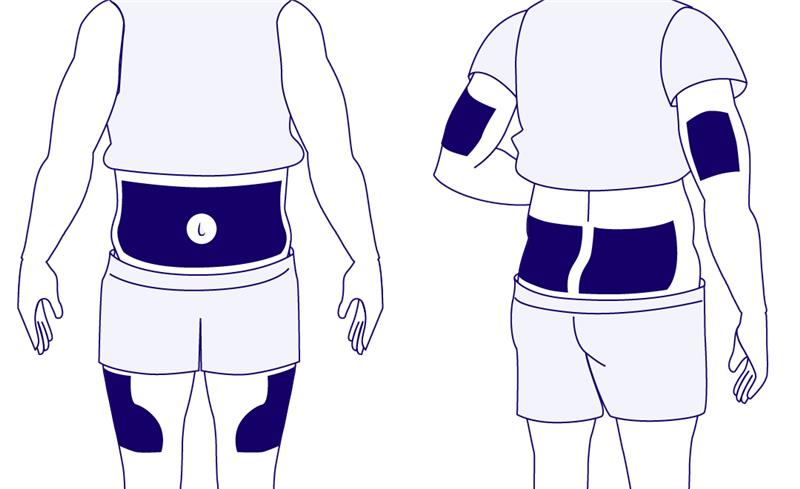
Choose an insertion site from the shaded areas shown here:
Find infusion set support and compare infusion sets.
How do I insert my infusion set?
How do I insert my infusion set?
I need help with continuous glucose monitoring (CGM)
Do I need to remove my GuardianTM sensor for an X-ray/CT scan/MRI?
Do I need to remove my GuardianTM sensor for an X-ray/CT scan/MRI?
Yes, it is recommended that you remove your sensor and transmitter to avoid any damage. Once the testing is complete, you can insert a new sensor.
Can I shower and swim with the sensor and transmitter?
Can I shower and swim with the sensor and transmitter?
After the transmitter and sensor are connected, they form a waterproof seal to a depth of 8 feet (2.4 meters) for up to 30 minutes. You can shower and swim without removing them. Sensor readings may not be transmitted from the sensor to the pump while in water.
What can I do if bleeding occurs after inserting the GuardianTM sensor?
What can I do if bleeding occurs after inserting the GuardianTM sensor?
If bleeding occurs after sensor insertion, do the following:
- Apply steady pressure, using sterile gauze or a clean cloth placed on top of the sensor, for up to three minutes. The use of unsterile gauze can cause site infection.
- If bleeding stops, connect the transmitter to the sensor. If bleeding does not stop, do not connect the transmitter to the sensor because blood can get into the transmitter connector, and could damage the device.
If bleeding continues, causes excessive pain or discomfort, or is significantly visible in the plastic base of the sensor, do the following:
- Remove the sensor and discard.
- Check the site for redness, bleeding, irritation, pain, tenderness, or inflammation. Treat based on instructions from your healthcare professional.
- Insert a new sensor in a different location.
Review all sensor troubleshooting tips.
If bleeding continues, causes excessive pain or discomfort, or is significantly visible in the plastic base of the sensor, do the following:
- Remove the sensor and discard.
- Check the site for redness, bleeding, irritation, pain, tenderness, or inflammation. Treat based on instructions from your healthcare professional.
- Insert a new sensor in a different location.
Review all sensor troubleshooting tips.
What is the difference between sensor glucose and blood glucose?
What is the difference between sensor glucose and blood glucose?
Learn about sensor glucose versus blood glucose.
What is suspend before low?
What is suspend before low?
Suspend before low is a SmartGuardTM suspend feature. When Suspend before low is on, your pump will temporarily stop delivering insulin if the sensor glucose (SG) value is approaching your low limit. This will keep you from getting additional insulin that would continue to lower your SG level.
What are some calibration best practices?
What are some calibration best practices?
- Try not to calibrate with multiple blood glucose (BG) meters. It’s best to stick with the same meter for all your calibrations.
- Wash your hands before checking your BG.
- Enter the BG reading into the pump/monitor right away. Don’t use old meter BG readings or previous sensor readings as a calibration.
- If your system requires a new calibration, wait at least 15 minutes between calibration entries.
What do the icons mean on my MiniMed™ 780G pump graph when using CGM?
What do the icons mean on my MiniMed™ 780G pump graph when using CGM?
The sensor graph provides current SG reading information that is transmitted to the pump. If the MiniMed™ Mobile app is in use, the sensor graph can be viewed on a mobile device. For a detailed explanation of the icons, review the Manual Mode (page 172) and SmartGuard™ technology (page 187) screens in the system user guide.
I need help with my Guardian™ 4 sensor
Where can I insert my sensor?
Where can I insert my sensor?
The GuardianTM 4 sensor is approved to be worn on the back of the upper arm for individuals 7 years and older. Learn more about inserting and starting your GuardianTM 4 sensor.
How do I prevent getting CGM alerts at night?
How do I prevent getting CGM alerts at night?
CGM alerts at night may be caused by a few different reasons ranging from sensor insertion to site placement. Here are a few tips to help prevent getting CGM alerts in the middle of the night.
- Sensor insertion, site placement, and taping make a difference. For your sensor to work its best, avoid sites where clothing may rub or constrict, where your body naturally bends which may cause the sensor to pull out and where this a lot of pressure. Follow instructions for how to insert the GuardianTM4 sensor.
- Check your pump’s home screen before going to bed. If you’re using the SmartGuard™ technology, make sure you see the blue shield.
- Customize nighttime alert settings. Talk to your healthcare team about your alerts overnight to make sure they are personalized to meet your needs. You may consider setting them differently for the overnight period.
- Consider the Alert Silence feature. Your pump has a feature called Alert Silence, where you can temporarily silence alerts. Don’t worry, you will still get important low alerts if Alert Silence is ON. For your safety, Low SG (64 mg/dL or below) and High SG (250 mg/dL or higher for more than 3 hours) will always sound. Learn how to set Alert Silence.
Do I need to calibrate my GuardianTM 4 sensor?
Do I need to calibrate my GuardianTM 4 sensor?
The GuardianTM 4 sensor does not require fingersticks for calibration. However, every BG reading confirmed on the pump is used to calibrate the sensor. Additionally, entering a BG reading from a BG meter as desired will not negatively impact the system. Please note: the system requires a BG reading to enter SmartGuardTM technology and may require a BG from time to time to stay in automation.
Why am I getting a Sensor Updating alert?
Why am I getting a Sensor Updating alert?
Now that the Guardian™ 4 sensor is free of calibrations, additional signal checks were put in place to assess sensor reliability. The “Sensor Updating” message may occur on the pump screen when the system indicates the sensor is not working properly. Most sensors resume normal function, so there is no need to take action unless recommended by the system. If the updating lasts for more than 3 hours, the recommendation is to replace the sensor to maximize time in SmartGuard™ technology.
Understanding the Sensor Updating alert.
Requesting a replacement sensor online.
Where can I find more information about the Guardian™ 4 sensor?
Where can I find more information about the Guardian™ 4 sensor?
You can learn more about the Guardian™ 4 sensor on our website.
How do I insert my sensor?
How do I insert my sensor?
Watch this video to learn how to insert the Guardian™ 4 sensor.
What are the top 5 tips to improve my experience with the GuardianTM 4 sensor?
What are the top 5 tips to improve my experience with the GuardianTM 4 sensor?
- Location, Location, Location. Where you insert your sensor can make a big difference. In fact, it's best to choose a flat area on the back of your upper arm where you can "pinch an inch" that's also free of scar tissue.
- Ask for a helping hand. If you need extra support with sensor insertion on the back of your upper arm: Ask a buddy for help, stand in front of a mirror, refer to Medtronic online resources.
- Make it stick. If additional tape isn't enough, consider using an optional skin adhesive. The key here is to use it after you insert the sensor but before you apply the first oval tape. We also recommend making sure that the sensor base and transmitter are covered with two pieces of tape. If additional tape is needed, you can add it on top.
- Do not fear if "sensor updating" appears! This is a safety feature that's most likely to happen on the first day. There's nothing you need to do unless your pump alerts you. Most of the time, it resolves on its own in an hour. But if it lasts for more than 3 hours, replace the sensor and get in touch with Medtronic for help.
- Remember that the algorithm has your back. All boluses (meals and corrections) are analyzed by the algorithm to assess for safety before being delivered. If you're experiencing highs after meals, consider bolus timing and talk to your healthcare team about your carb ratio.
Do I need to do fingersticks with GuardianTM 4 sensor?
Do I need to do fingersticks with GuardianTM 4 sensor?
The GuardianTM 4 sensor does not require fingersticks for calibration.† However, every BG reading confirmed on the pump is used to calibrate the sensor. Additionally, entering a BG reading from a BG meter as desired will not negatively impact the system. Please note: the system requires a BG reading to enter SmartGuard™ technology and may require a BG from time to time to stay in automation.
† Fingersticks required in manual mode & to enter SmartGuard. If symptoms don’t match alerts and readings, use a fingerstick. Refer to user guide. Pivotal trial participants spend avg of > 93% in SmartGuard.
Why do I have to wear my sensor in the back of my arm?
Why do I have to wear my sensor in the back of my arm?
For the best possible experience when it comes to sensor lifespan and alert performance, the GuardianTM 4 sensor should be worn on the back of the upper arm. Approved locations include: arm.
I need help inserting, taping, and securing my sensor
Where should I insert my glucose sensor?
Where should I insert my glucose sensor?
The MiniMedTM 780G system is compatible with both the GuardianTM Sensor 3 and GuardianTM 4 sensor. For those ages 14 and up, the GuardianTM Sensor 3 can be worn on the back of the upper arm or abdomen. For those ages 7 and up, the GuardianTM 4 sensor can be worn on the back of the upper arm.
What will help my sensor last a full 7 days?
What will help my sensor last a full 7 days?
Here are some things you can try to help get up to 7 days wear out of your glucose sensor:
- Make sure to follow the steps for skin prep from your user guide to set your sensor up for success.
- Be sure you are wearing your sensor in the approved location. Make sure you aren’t inserting into muscle, scar tissue, or areas that experience a lot of movement. If you need additional help, ask a care partner for assistance, or stand in front of a mirror.
- Make sure to use two pieces of oval tape so that they are covering the sensor base and transmitter. Follow these taping instructions; incorrect taping is one of the most common reasons why sensors won’t stay in place.
- Try using a liquid adhesive to help your tape stick for longer. Make sure to apply the extra adhesive after you insert your sensor and before you put your tape on, especially if you’re active or in warmer climates.
Watch this video for tips to improve your sensor experience.
What is the best way to tape my sensor and transmitter?
What is the best way to tape my sensor and transmitter?
We have a recommended method for taping that we have found is effective for most people who wear CGM. It requires you to use both pieces of Oval tape that are supplied with your sensor. Some people also use an additional layer of tape called overtape. Watch the video below on how to tape and use extra adhesives.
Where can I purchase or try out additional adhesive or tape options?
Where can I purchase or try out additional adhesive or tape options?
You can purchase adhesives and tapes at Diabetes.shop or through the product manufacturer’s website – review this list of product recommendations.
Contact 24-Hour Technical Support at 1-800-646-4633 option 1 for technical assistance or to report product issues. They can also provide a sample kit with various tapes and adhesives.
I need help understanding my CGM alerts and alarms
How do I clear alerts and alarms?
How do I clear alerts and alarms?
Check out this Sensor Alerts Quick Reference to learn about the most common alarms and how to clear them.
How do I silence my alerts?
How do I silence my alerts?
The Alert silence feature silences certain sensor alerts for a set period of time. Learn how to silence your glucose alerts.
How do I change my alert settings?
How do I change my alert settings?
Alerts with the system are customizable. Be sure to work with your healthcare provider who can help you determine how to optimize your settings.
Learn more on how to adjust your low settings.
Learn more on changing your high settings.
I need help with my SmartGuard™ technology
What is SmartGuardTM technology?
What is SmartGuardTM technology?
SmartGuard™ technology, is an advanced algorithm that uses current and past sugar level trends from your CGM data to anticipate, adjust, and correct insulin delivery every 5 minutes. If your sugar levels are trending high, the system automatically gives you more insulin. If your sugar levels are trending low, the system automatically reduces the amount of insulin delivered. More importantly, if you occasionally forget to give yourself a meal dose‡ and you’re trending high, the system automatically delivers a correction dose to help bring you safely back to target.
‡ Taking a bolus 15 – 20 min before a meal helps to keep blood sugar levels under control after eating.
How long is the SmartGuardTM technology warm-up time before I can start using the feature?
How long is the SmartGuardTM technology warm-up time before I can start using the feature?
If you are upgrading your MiniMedTM 770G insulin pump via the Software Upgrade, there is a 5-hour warm-up period before you can enter SmartGuardTM technology.
If you are starting on a new MiniMedTM 780G insulin pump (hardware) or upgrading your MiniMedTM 770G insulin pump to a brand-new hardware MiniMedTM 780G insulin pump, you will have a 48-hour warm-up period before being able to enter SmartGuardTM technology.
How do auto corrections work?
How do auto corrections work?
Auto corrections are delivered when two conditions are met: maximum auto basal delivery is reached and the sensor glucose is above 120 mg/dL.
What do I do if I experience high blood sugar after my meals?
What do I do if I experience high blood sugar after my meals?
Consider the timing of your boluses and work with your healthcare team to ensure your carb estimates are appropriate and your carb ratios are correct.
Do I still need to bolus with auto corrections? Can I stop bolusing for meals?
Do I still need to bolus with auto corrections? Can I stop bolusing for meals?
Yes. Taking a bolus before meals helps to keep glucose levels in range after eating by helping the insulin match the rise in glucose. That said, when in SmartGuard™ technology the pump will deliver auto correction doses every 5 minutes without user interaction which can be particularly helpful if you miscalculate your carb counts or occasionally miss a bolus.
What is a user-initiated correction? How do I deliver one?
What is a user-initiated correction? How do I deliver one?
A user-initiated correction will allow you to deliver a correction bolus as needed to bring down a glucose value that is out of range. To deliver a "user-initiated correction," you must enter in a BG from a blood glucose meter into the Bolus WizardTM.
How does the system know if I have eaten carbs to correct a low?
How does the system know if I have eaten carbs to correct a low?
The system can only track carbohydrates that are entered into the pump. Consuming carbohydrates (and not entering it into the pump) to treat a low sugar should not have a significant impact on the algorithm.
Does the programmed basal amount affect SmartGuardTM technology? What other programmed settings are used in SmartGuardTM technology?
Does the programmed basal amount affect SmartGuardTM technology? What other programmed settings are used in SmartGuardTM technology?
SmartGuardTM technology does not use the manual mode programmed basal rates to determine auto basal delivery. Instead the algorithm makes a new decision every 5 minutes and will adjust the basal delivery based off the sensor glucose values. The programmed settings that SmartGuardTM technology does use include the insulin to carb ratios, active insulin time and the SmartGuardTM auto basal target.
I bolused for food I did not eat, will the system stop insulin delivery?
I bolused for food I did not eat, will the system stop insulin delivery?
If the system sees that the sensor glucose is falling it will decrease the insulin being delivered and/or stop insulin from being delivered. However, it is important that you eat the amount of carbohydrates that you bolused for because the bolus insulin that you gave will already be working in your body.
Is there a way to see your average insulin use while in SmartGuardTM technology?
Is there a way to see your average insulin use while in SmartGuardTM technology?
Yes! On the CareLink™ system reports there is a a section where you or your healthcare provider can see the total daily amount of insulin used and the amount of insulin received from auto basal.
How does the Temp Target work and how should I use it?
How does the Temp Target work and how should I use it?
You can set a temporary sensor glucose target (Temp Target) of 150 mg/dL for situations when less insulin is needed, such as exercise. This can be set to as little as 30 minutes and up to 24 hours in 30-minute increments. After the programmed time, if not canceled early, the pump will automatically revert back to using the programmed SmartGuard™ auto basal target. The recommendation is to start the Temp Target 1-2 hours before beginning the activity and stopping it immediately after. Check with your healthcare professional regarding the use of Temp Target.
Review this Temp Target handout and instructions on how to set a temporary sensor glucose target.
What is the Safe Meal Bolus feature and how does it work?
What is the Safe Meal Bolus feature and how does it work?
The Safe Meal Bolus is a safety feature that looks at every meal bolus entered and predicts whether it could cause hypoglycemia over the next four hours. In these cases, the meal bolus is reduced to the largest amount not predicted to cause a low which may differ from what you would calculate. The Safe Meal Bolus feature considers glucose trends, current glucose level, insulin on board (including recent meal boluses, auto and user-initiated corrections as well as auto basal delivery) and carbs entered.
I am experiencing low blood sugars at night, what should I do?
I am experiencing low blood sugars at night, what should I do?
Consider the timing of your boluses and work with your healthcare team to ensure your settings are appropriate. In some cases, using the Temp Target may help.
Are there limitations to how much auto correction the system can deliver?
Are there limitations to how much auto correction the system can deliver?
The system will deliver up to 8% of the total daily insulin dose as auto correction within a 45 minute period. However, if the user notices they are not receiving auto corrections, they can deliver a user initiated correction bolus using a BG. Once the criteria is met for auto corrections to occur, they will start delivering.
Previously, I used ghost carbs when going high. Is that recommended?
Previously, I used ghost carbs when going high. Is that recommended?
It is not recommended to use ghost carbs on the MiniMed™ 780G system. This system algorithm is stronger than previous systems and entering ghost carbs may increase your risk for low sugars (hypoglycemia).
Can you deliver a Dual WaveTM or Square WaveTM bolus in SmartGuardTM technology?
Can you deliver a Dual WaveTM or Square WaveTM bolus in SmartGuardTM technology?
You cannot deliver a dual or square wave bolus in SmartGuard™ technology. The system is designed to compensate for a delayed rise in sensor glucose levels due to high fat, high carb meals. The auto basal adjustments every 5 minutes and auto corrections may eliminate the need for using the dual or squave wave bolus.
What should I do if I miss a bolus for a meal?
What should I do if I miss a bolus for a meal?
If you forget to bolus for a meal and remember within 30 minutes of starting your meal you can still deliver a bolus however only enter 50% of the carbs that you consumed. If 30 minutes have passed, it is not recommended to bolus but instead deliver a correction bolus if your blood sugar is high.
How do I know if I am in SmartGuardTM technology?
How do I know if I am in SmartGuardTM technology?
You will see a blue shield on the home screen of your pump. You can also go into your status menu.
I need help with my MiniMed™ Mobile app
What are the requirements for using and seeing my data on the MiniMedTM Mobile app?
What are the requirements for using and seeing my data on the MiniMedTM Mobile app?
- A compatible smartphone. Check our app compatibility list.
- MiniMed™ 780G pump needs to be within 20 feet from your smartphone.
- The app needs to be open, in the foreground or background.
- Bluetooth® connection.
How do I ensure my smartphone will always be compatible?
How do I ensure my smartphone will always be compatible?
Before updating your smartphone’s operating system we recommend you check our app compatibility list.
To ensure your device will continue to be compatible when new operating systems are released by Apple® or Android™, we recommend that you disable automatic OS updates so you can manually update your operating system after verifying our compatibility list on our website.
How do I pair my pump to the MiniMedTM Mobile app?
How do I pair my pump to the MiniMedTM Mobile app?
Review instructions for setting up the MiniMed™ Mobile app and check out this quick reference guide.
What if I don’t have a smartphone?
What if I don’t have a smartphone?
If you do not have a compatible smartphone, you will be able to continue using your MiniMedTM 780G but will not be able to use the app.
You can use the regular pump screen for viewing data and use the Blue Adapter for manual downloads into CareLinkTM Personal system.
How can I automatically transfer data from my MiniMedTM Mobile app to CareLinkTM software?
How can I automatically transfer data from my MiniMedTM Mobile app to CareLinkTM software?
The following are required for your data to automatically upload to CareLinkTM Software:
- Internet and Bluetooth® connection
- Sync to CareLinkTM option turned ON
- Stay logged into the CareLinkTM software (check once weekly to make sure you are logged in)
- Keep the app open (either in foreground or perform Upload Now whenever you want to upload your pump data to CareLink software).
Click here for more information.
How can I turn off automatic updates for my Apple® device’s operating system?
How can I turn off automatic updates for my Apple® device’s operating system?
From the settings menu, go to General, go to Software Update and set Automatic Updates to the "off" position.
How can I turn off automatic updates for my Android device’s operating system?
How can I turn off automatic updates for my Android device’s operating system?
From the System updates menu, select Automatic security updates and turn Off.
When should I calibrate?
When should I calibrate?
You should calibrate when your glucose levels are stable. Exercise and eating can cause rapid changes in your glucose levels. That’s why many people choose to calibrate before meals and before bedtime. It’s important to always calibrate when the system asks you to or you will be exited from SmartGuard. For more information, take a look at this video about calibration best practices.
What is the App Manager?
What is the App Manager?
The App Manager is an accessory that comes with the MiniMed™ Mobile app already installed. It helps you pair your Instinct sensor, made by Abbott, with your MiniMed™ 780G insulin pump. This no-cost accessory is available for you if you have an insurance plan that requires us to include it as part of your sensor order, and/or if you don’t have a smartphone that is compatible with the MiniMed™ Mobile app.
My phone is compatible with the MiniMed™ Mobile app. Why did I receive this App Manager?
My phone is compatible with the MiniMed™ Mobile app. Why did I receive this App Manager?
You may have received an App Manager because you may have an insurance plan that requires us to send it to you as part of your sensor order. If you don’t need to use it right now, we recommend keeping the App Manager as a backup. You can use the accessory anytime to help pair your Instinct sensor with your pump.
I need help with my CareLink™ Connect app
How can my care partners pair the CareLinkTM Connect app with their smartphones?
How can my care partners pair the CareLinkTM Connect app with their smartphones?
When using the MiniMed™ Mobile app, up to five care partners can view and receive alerts through the CareLink™ Connect app.
The pump user needs to manually provide a CareLink™ Personal username to care partners and accept the care partner request to follow.
Check out this quick reference guide and our online app support for step by step instructions.
Can a care partner turn off notifications and alarms in the CareLinkTM Connect app?
Can a care partner turn off notifications and alarms in the CareLinkTM Connect app?
Yes, care partners can adjust notifications and alarms in the CareLink™ Connect app. Also, depending on the phone's operating system, customers can control how they appear. Click here to learn how to personalize notifications.
Can a care partner follow more than one MiniMedTM Mobile app user?
Can a care partner follow more than one MiniMedTM Mobile app user?
A care partner can currently follow up to 5 MiniMedTM Mobile app users.
Does the CareLinkTM Connect app always show up-to-date data?
Does the CareLinkTM Connect app always show up-to-date data?
To view up-to-date data, the CareLink™ Connect app user must be logged in and have internet connection on their phone. In addition, the MiniMed™ Mobile app user must have:
- Their pump and phone in range (about 20 feet)
- Their phone connected to internet access
- Sync to CareLink™ feature on
- Be logged into CareLink™ Personal on the app
The CareLink™ Connect app Home screen will indicate when data was last uploaded.
Check out the CareLink™ Connect app support page for more information and tips to improve connectivity.
I need help with my CareLink™ software
How do I create a CareLinkTM Personal account?
How do I create a CareLinkTM Personal account?
Even if you have an online Medtronic account, a unique login is needed for CareLinkTM software. Learn how to create a CareLink account.
How do I set up my computer to upload my insulin pump data?
How do I set up my computer to upload my insulin pump data?
The CareLinkTM uploader allows you to upload the information in your pump to the CareLinkTM Personal website. Learn how to install the CareLinkTM Uploader and upload your data to CareLinkTM Personal if you’re not using the MiniMedTM Mobile app.
How do I install the latest version of the CareLinkTM Uploader?
How do I install the latest version of the CareLinkTM Uploader?
CareLinkTM uploader is used to upload data from your pump into the CareLinkTM Personal system manually as opposed to using the MiniMedTM Mobile app. You must have a Blue Adapter to perform this function. Having the latest version of the Uploader installed on your computer provides the most optimal upload experience. Review instructions on how to install the latest version of CareLinkTM uploader.
How can I automatically transfer data from my MiniMedTM Mobile app to CareLinkTM software?
How can I automatically transfer data from my MiniMedTM Mobile app to CareLinkTM software?
The MiniMedTM Mobile app can sync data to CareLinkTM software automatically or manually.
The Sync to CareLinkTM feature automatically sends data from the MiniMedTM Mobile app to the corresponding CareLinkTM account approximately every five minutes. This feature also automatically sends data used to create CareLinkTM reports approximately every 24 hours. Learn how to set up this feature.
Note: When Sync to CareLinkTM is off, no data will be sent to CareLinkTM software or to the CareLinkTM Connect app.
What CareLinkTM report shows my overall glucose management?
What CareLinkTM report shows my overall glucose management?
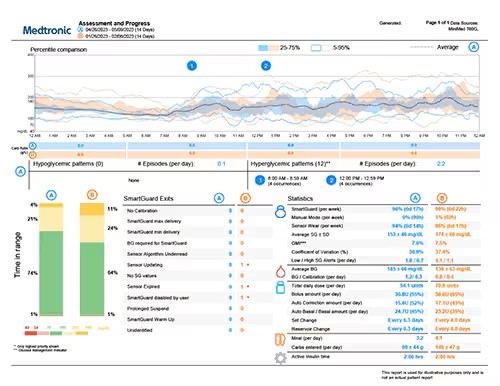
The Assessment and Progress Report is designed to help you view your glucose management while on your MiniMedTM 780G system. You can use this report with your healthcare professional to improve the duration of time spent in SmartGuardTM technology.
Can my healthcare provider see my CareLinkTM Personal information?
Can my healthcare provider see my CareLinkTM Personal information?
Yes, you can share your data with your healthcare provider.
In order to link with them, you will need to link your account with theirs. To do so, follow these step-by-step instructions.
What do I do if I cannot access my CareLinkTM Personal account?
What do I do if I cannot access my CareLinkTM Personal account?
Please contact the Technical Support Team for assistance at 1-800-646-4633, option 1.
How do I upload my insulin pump data with the Blue Adapter?
How do I upload my insulin pump data with the Blue Adapter?
Check out the upload guide for easy steps on how to upload your pump data with the Blue Adapter.
I need help with lifestyle questions
When in SmartGuardTM technology, you can choose a target of 100 (default), 110, or 120 mg/dL and you can temporarily change your target to 150 mg/dL. The Temp Target feature is designed for any time you want less background insulin. In addition to exercise, this may include yard work, times of high stress, exams, driving, or drinking alcohol. Every person is different, but in general you could start the Temp Target 1‐2 hours before exercise and end it 1‐2 hours after. During the time the Temp Target is active, auto corrections will not be delivered.
If you find you are still dropping low during exercise, you may need to consider a combination of suspending your pump and/or consuming carbs to avoid the low altogether.
You might also benefit from these exercise tips.
How should I handle airport security?
How should I handle airport security?
The TSA allows for diabetes-related supplies, equipment and medication—including liquids—through the checkpoint once they have been properly screened by X-ray or hand inspection.
If possible, pack all your supplies together in your carry-on bag so you have everything on hand. Before your screening begins, inform the officer conducting the screening about any supplies on you or in your carry-on.
Read more about flying with your diabetes supplies and how-to pass-through security before boarding your flight.
When should I plan to order new supplies?
When should I plan to order new supplies?
We recommend ordering when you open your last box of sensors or infusion sets. To order supplies, you have three options:
- Sign up for Scheduled Orders or place your one-time order at Diabetes.shop.
- Text SUPPLY to 22094 to start the order process.
- Call us between 8 a.m. to 6 p.m. CT during the week at 1-800-646-4633, option 2.
If you order sensors through a distributor, you’ll need to contact them directly to place your next order.
What is the Travel Loaner Program?
What is the Travel Loaner Program?
The Travel Loaner Program allows US-based customers to take a "back-up" insulin pump for a $50 fee every 90 days. Take a "back-up" pump when you:
- Go on a cruise
- Travel to Hawaii or Alaska
- Travel internationally
Complete the Travel Loaner form and submit it at least 2 weeks prior to your trip to ensure on-time delivery. A signature is required upon delivery and you will need to return the travel loaner when you arrive back home.
It is important that you check your blood glucose (BG) more frequently while you are traveling. The routine hassle of travel, including stress, changes in time zones, schedules and activity levels, meal times and types of food, can all affect your diabetes control. Be extra attentive to monitoring your BG frequently and be prepared to respond if needed.
What should I pack?
What should I pack?
Pack extras of everything– insulin, infusion sets, sensors, reservoirs, alcohol swabs, sensor tape, extra compatible batteries for your pump, and even syringes in cases of emergency. The mentality is, “it’s better to have more of what you need, than not enough.” Check out our full travel checklist.
Important Safety Information: MiniMedTM 780G system with SmartGuardTM technology with Instinct sensor, Simplera SyncTM sensor, and GuardianTM 4 sensor
The MiniMedTM 780G system is intended for the continuous delivery of basal insulin at selectable rates and the administration of insulin boluses at selectable rates for the management of type 1 diabetes mellitus in persons 7 years of age and older, and of type 2 diabetes mellitus in persons 18 years of age and older requiring insulin. The system is also intended to continuously monitor glucose vales in the fluid under the skin.
The MiniMedTM 780G System includes SmartGuardTM technology, which can be programmed to automatically adjust insulin delivery based on the continuous glucose monitoring (CGM) sensor glucose values and can suspend delivery of insulin when the sensor glucose (SG) value falls below or is predicted to fall below predefined threshold values. The system is intended for use with connected sensors, including the Simplera SyncTM and GuardianTM 4 sensors and integrated continuous glucose monitors, including the Instinct sensor, each of which has different wear-time, form factor, insertion site, and other distinguishing characteristics that relate to sensor performance. Consult the appropriate sensor user guide when using the system. Discuss treatment decisions with your HCP.
WARNING: Do not use the SmartGuardTM feature for people who require less than 8 units or more than 250 units of total daily insulin per day. A total daily dose of at least 8 units, but no more than 250 units, is required to operate in the SmartGuardTM feature.
WARNING: Do not use MiniMedTM 780G system until appropriate training has been received from a healthcare professional. Training is essential to ensure the safe use of MiniMedTM 780G system.
WARNING: Do not use SG values to make treatment decisions, including delivering a bolus, while the pump is in Manual Mode. When the SmartGuardTM feature is active and you are no longer in Manual Mode, the pump uses an SG value, when available, to calculate a bolus amount. However, if your symptoms do not match the SG value, use a blood glucose (BG) meter to confirm the SG value. Failure to confirm glucose levels when your symptoms do not match the SG value can result in the infusion of too much or too little insulin, which may cause hypoglycemia or hyperglycemia.
Pump therapy is not recommended for people whose vision or hearing does not allow for the recognition of pump signals, alerts, or alarms. The safety of the MiniMedTM 780G system has not been studied in pregnant women or in persons using other anti-hyperglycemic therapies that do not include insulin. For complete details of the system, including user guides and important safety information such as indications, contraindications, warnings and precautions associated with system and its components, see https://link.minimed.com/Risks.
©2026 Medtronic MiniMed, Inc. MiniMed and MiniMed logo are trademarks of Medtronic MiniMed, Inc. The sensor shape and appearance, Abbott, and “a” logo are marks and/or designs of the Abbott group of companies in various territories and used under license. Sensor image ©2026 Abbott. TM*Third–party brands are trademarks of their respective owners.
DreaMed Diabetes is a trademark of DreaMed Diabetes, Ltd. The MiniMedTM 780G system algorithm includes technology developed by DreaMed Diabetes.